

Many companies do not start with formal systems for their internal processes.
As we recently reviewed customer cases, we noticed a very common pattern. In the early stages of a business, or before internal systems are fully in place, many companies rely on Excel to manage customers, track orders, follow projects, handle approvals, and maintain inventory records.
💡Read more: How to Quickly Build a System to Replace Excel? (Complete Guide)
But as more and more business data and workflow logic are pushed into spreadsheets, Excel’s limitations gradually become harder to ignore. Many spreadsheets that were originally used only for recordkeeping eventually begin to take on part of the role of CRM, ERP, ticketing, or project management tools.
That is exactly why turning Excel-based workflows into web applications has become a practical need for more and more companies. Still, different approaches fit different business stages, involve different levels of implementation effort, and offer different levels of long-term flexibility. In the following sections, we will walk through several common approaches and look at which one may fit your current stage best.
💡Featured case: From Paper to Digital: How This Medical Manufacturer Chose NocoBase
Before we get into the details, the table below gives a quick overview of the 4 approaches covered in this article.
| Dimension | Method 1: No-code platform | Method 2: Online data platform | Method 3: AI generation tools | Method 4: Online spreadsheets |
|---|---|---|---|---|
| Core focus | Business system | Data structure | App prototypes / pages | Spreadsheet file |
| Main goal | Turn Excel into a formal system | Move data online and structure it first, then gradually build apps | Quickly create demos, prototypes, or lightweight apps | Support online collaborative editing |
| Typical capabilities | Data modeling, page building, permissions, workflows, plugin extensions | Related tables, views, forms, lightweight automation | Natural language page generation, front-end and back-end scaffolding, rapid iteration | Sharing, collaboration, comments, basic filtering |
| Representative tools | NocoBase, Appsmith, Budibase, ToolJet | Airtable, Feishu Bitable, Baserow | Lovable, Bolt, v0 | Excel for the web, Google Sheets, WPS Online Sheets |
| Best for | Formal business scenarios such as CRM, ERP, ticketing, and project management | The transition stage from Excel to a more structured system | Prototype validation, internal demos, rapid experimentation | Lightweight collaboration and short-term sharing |
| Strengths | Highly extensible and well suited for long-term use | Faster to start with and useful for organizing data first | Fastest to launch and lowest cost for testing ideas | Easy to learn and the lightest switch from Excel |
| Limits | Requires some upfront work to sort out data structure and processes | Good for transition, but not always suitable for complex business operations | Not always suitable for complex permissions or long-term maintenance | Still a spreadsheet at its core, not a formal application |
💬 Hey, you’re reading the NocoBase blog. NocoBase is the most extensible AI-powered no-code/low-code development platform for building enterprise applications, internal tools, and all kinds of systems. It’s fully self-hosted, plugin-based, and developer-friendly. → Explore NocoBase on GitHub
Method 1: Use an extensible no-code platform to turn Excel into a formal business system
Core idea
The core of this approach is to upgrade the business data already stored in Excel into a real web application, instead of continuing to rely on spreadsheets as the main way to run the business.
Typical tools for this approach include no-code or low-code platforms that support app building, data modeling, permission settings, and workflow extensions, such as NocoBase, Appsmith, Budibase, and ToolJet.
This article uses NocoBase as the main example because it is designed for building enterprise applications, internal tools, and many kinds of business systems. It also supports private deployment, plugin-based extensions, and long-term system growth.
Unlike many tools that generate pages directly from spreadsheets, NocoBase is built around a data model driven approach. Data structure and page presentation are separated. You define the data model first, then decide how the pages should appear. The advantage is that as the business continues to grow, the team does not have to stay tied to Excel. Whether you need to optimize your database structure, add table relationships, or connect to other data sources such as MySQL, PostgreSQL, MongoDB, REST API, or GraphQL, the system can keep expanding.
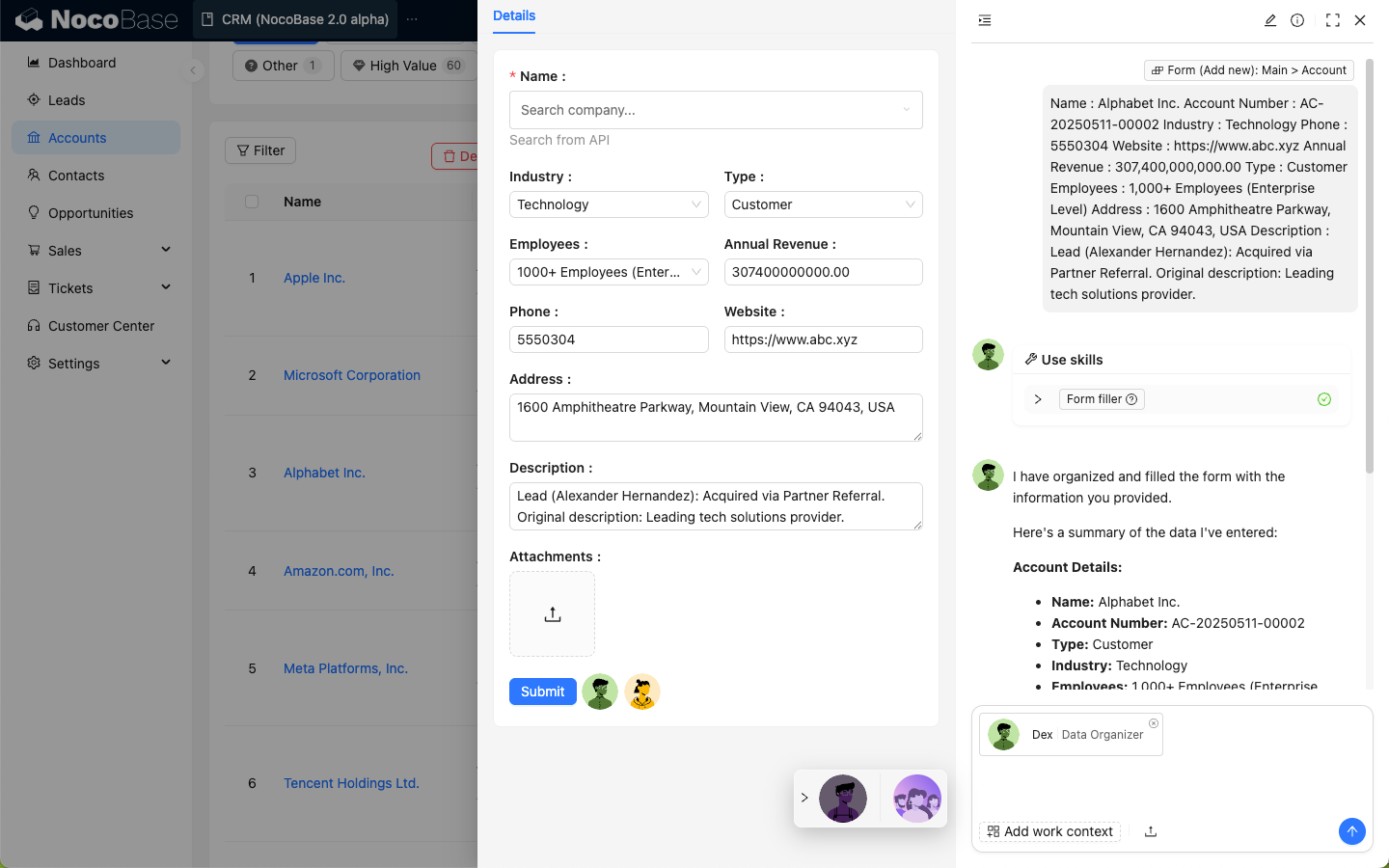
If this type of platform also includes native AI capabilities, it becomes even more useful for later business upgrades. NocoBase’s AI employee is not just a chat interface. It can understand context based on the current page, data, and table structure, and then perform real actions such as querying data, filling in forms, and updating records. This can be especially valuable for operations, customer service, data analysis, or repetitive workflow tasks.
Related links
NocoBase official website: https://www.nocobase.com/
NocoBase documentation: https://docs.nocobase.com/
Suitable teams
- Already using Excel to manage customers, orders, projects, tickets, or approval workflows
- Want to upgrade gradually based on existing spreadsheets instead of rebuilding everything from scratch
- Expect to add permissions, workflows, automation, or cross-team collaboration later
- Have requirements around data security, private deployment, or long-term scalability
- Have basic implementation capability, or are willing to sort out the business structure first
Implementation approach
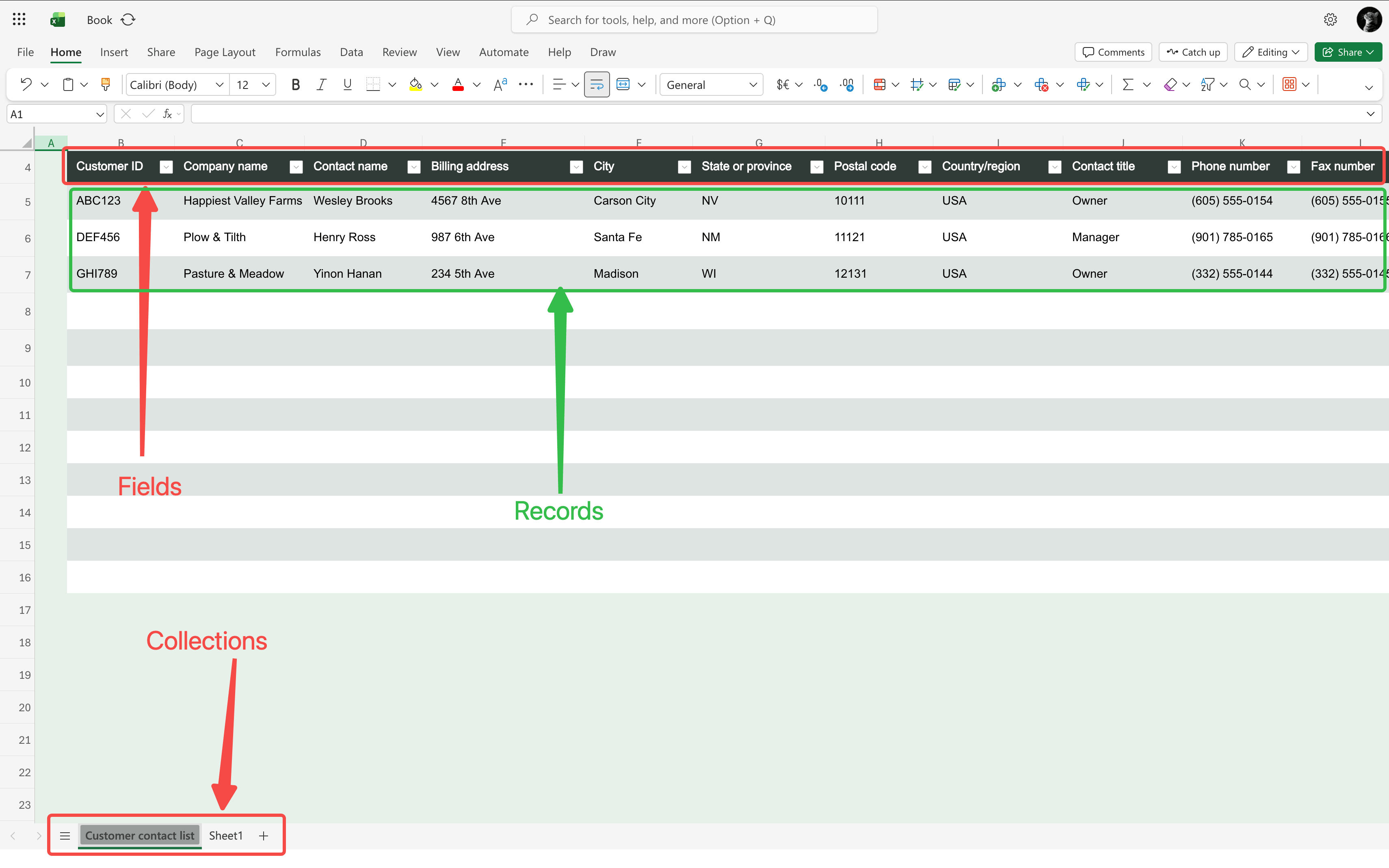
1. Start by creating tables and fields Break the customer, order, project, ticket, approval, and other data in Excel into separate tables, then define field types and relationships between the tables.
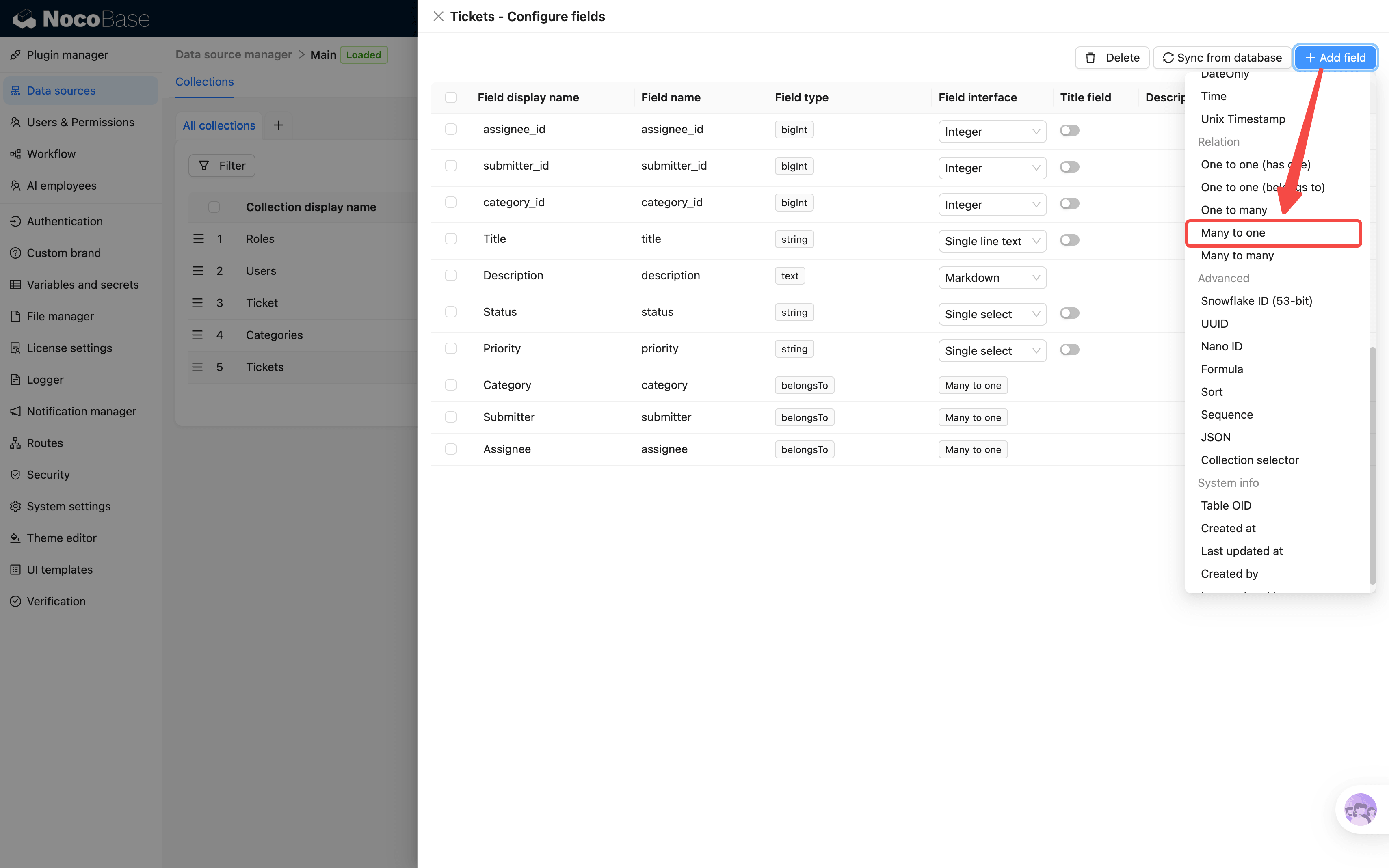
2. Then import the Excel data into those tables Once the table structure is ready, import the existing Excel data so the records that were scattered across spreadsheets are placed into properly structured tables and fields.
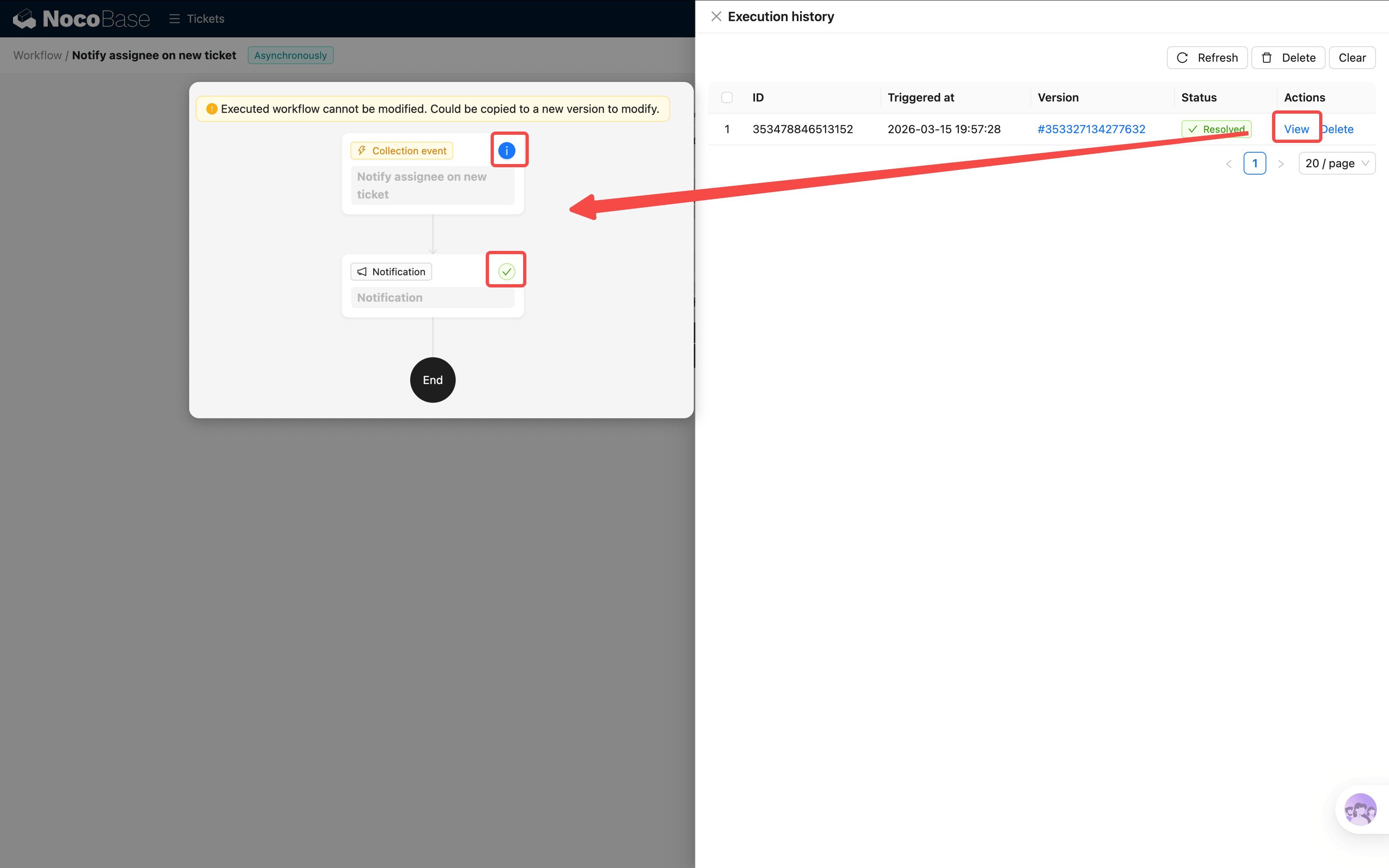
3. Configure list, form, and detail pages After the data is in the system, set up list pages, form pages, and detail pages so the records can be viewed, added, edited, and maintained.
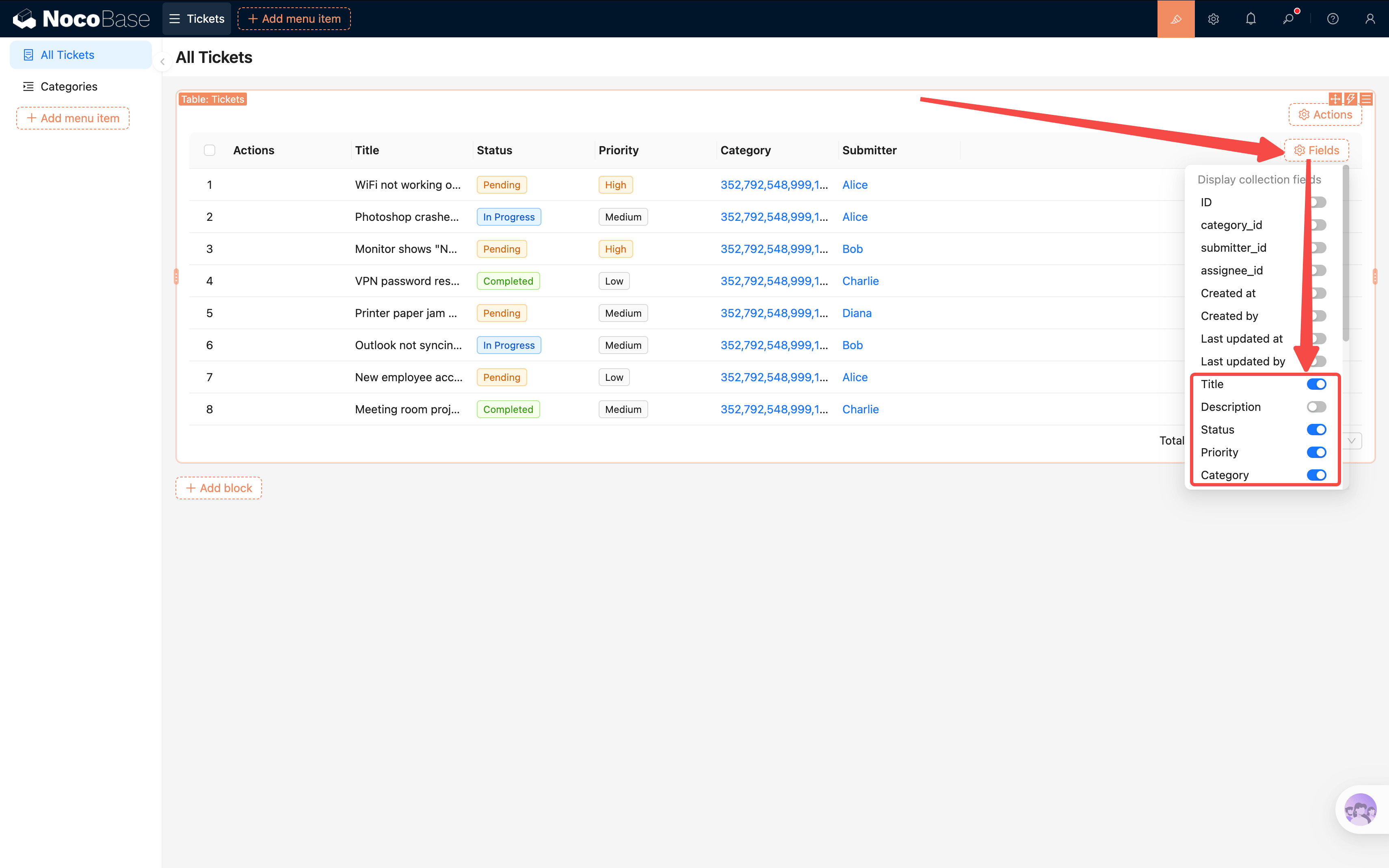
4. Configure roles and permissions Once the pages are usable, define menu access, action permissions, and data scope by role, so different users can see different content and handle different data.
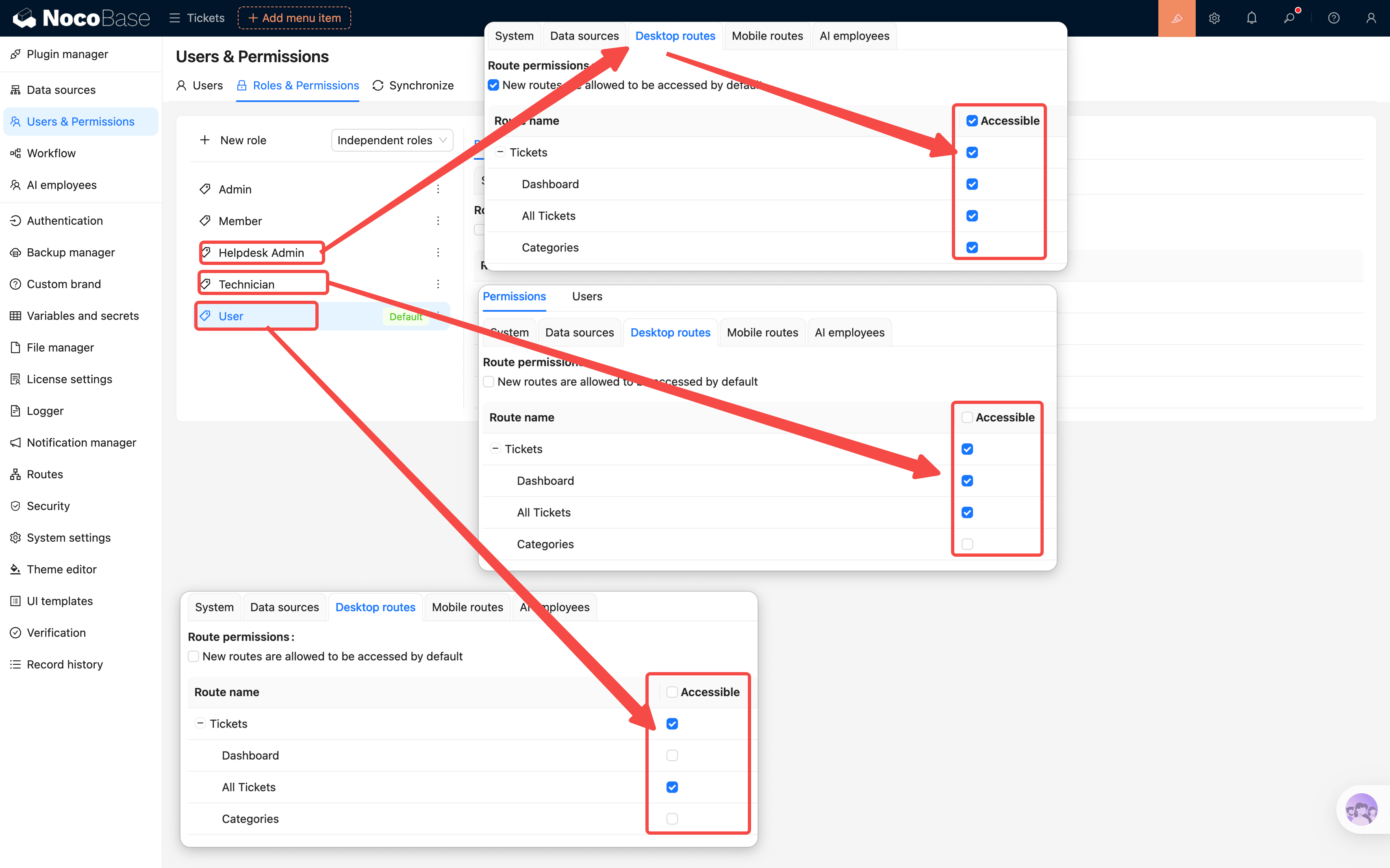
5. Add workflows and extension capabilities Then add status flows, automatic reminders, process handling, notifications, and any APIs, databases, or AI capabilities you may want to connect later, so the system can truly begin supporting day-to-day business operations.
Usage limits
- It usually requires more upfront work, since you need to sort out the data structure and business processes first
- It does not require heavy coding, but someone still needs to understand data models, page structure, and permission logic
- It is better suited to medium and long-term use, not to quickly building a temporary page
- The software itself may not be the biggest cost. In many cases, the real cost comes from implementation, process design, migration, and ongoing maintenance
🎉 NocoBase 2.0 Tutorial is now available. Using a ticketing system as an example, it shows how to build a complete business system from zero.
Method 2: Move data into an online data platform first, then gradually build applications
Core idea
The idea behind this approach is to first move data scattered across spreadsheets into an online, structured platform, and then build views, collaboration features, and lightweight workflows around that data. It works as a transition layer between Excel and a more complete business system. You start by organizing the data clearly, then decide whether to keep evolving it into a fuller application later.
Suitable tools for this approach usually include online data platforms that support spreadsheet-style management, field settings, multiple views, and basic automation, such as Airtable, Baserow, Coda, and Smartsheet. 💡Read more: NocoBase vs Airtable: A Flexible and Customizable Open-Source Alternative
For many teams already using online collaboration tools, Airtable is often an easy place to start. On one side, it retains a spreadsheet-style experience, so the learning curve is relatively low. On the other, it also offers fields, views, linked records, and lightweight automation, which makes it a good fit for many lighter business scenarios that were previously handled in Excel.
It can be used to organize and maintain customer information, project progress, campaign schedules, content management, lead follow-up, simple ticketing, operational records, and similar data. It also supports different views, forms, comments, and basic automation on top of that. For organizations that are not yet ready to build complex systems, but already want to make Excel data more structured and collaborative online, tools like this are often sufficient.
Related links
Airtable official website: https://www.airtable.com/
Airtable documentation: https://support.airtable.com/
Suitable teams
Already using Excel to manage customers, orders, projects, or operational data, but mainly struggling with sharing and maintenance Want to move data online and structure it first, then gradually add pages or workflows Need clearer field management, filtered views, and collaboration methods than Excel can offer Want to validate a business structure at low cost before deciding whether to move toward a more systematic solution Currently care more about speed of adoption and collaboration efficiency than building a complete system all at once
Implementation approach
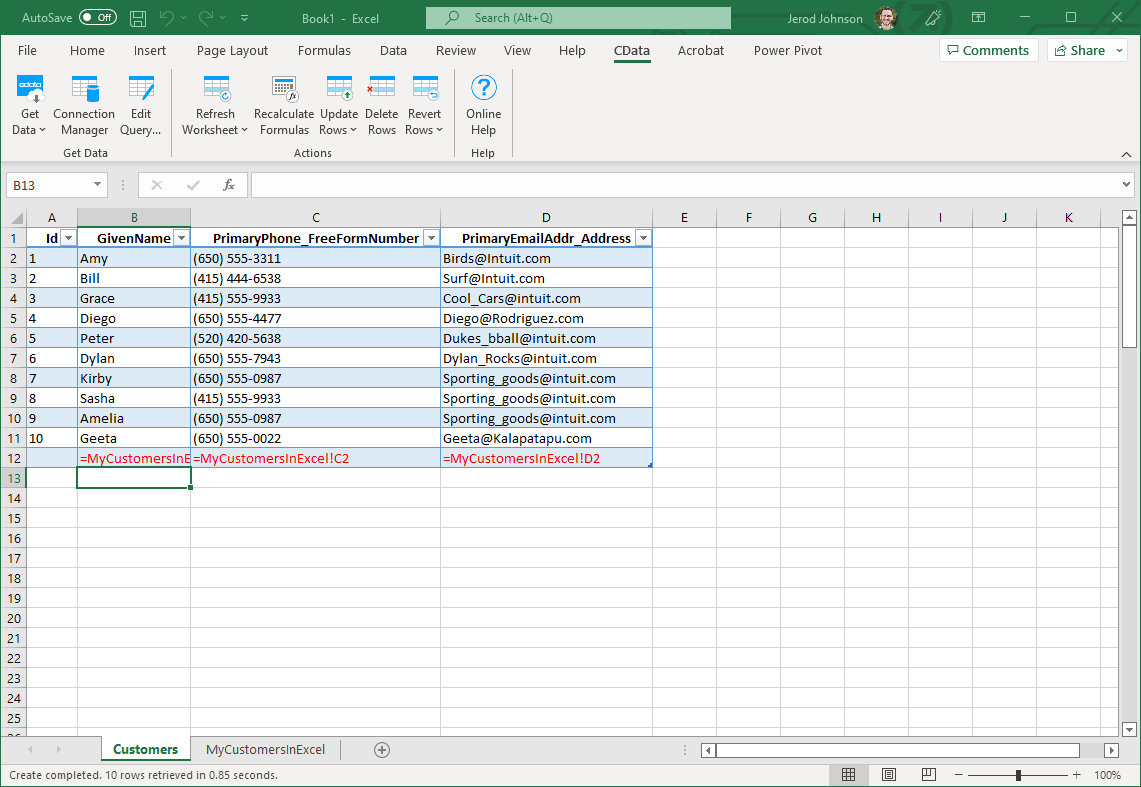
1. First import Excel data into Airtable Move your existing customer, order, project, ticket, or operational data into Airtable, so information that was previously scattered across local files becomes shared online tables that multiple people can maintain together.
2. Then organize fields, views, and table relationships
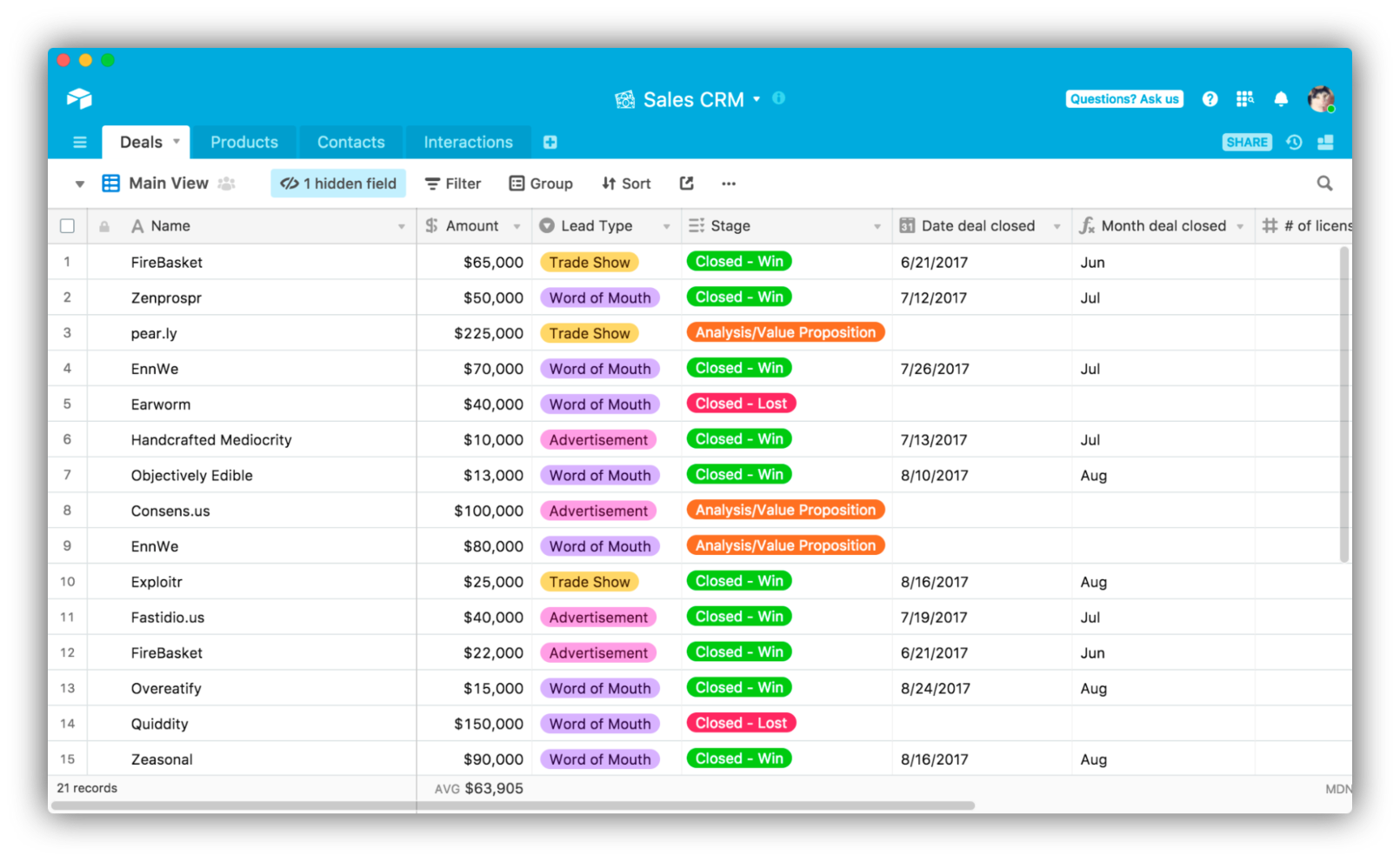
After importing, you will usually need to clean up field names, data types, and basic relationships first, then configure views such as Grid, Kanban, Calendar, Gallery, or Form for different users or use cases. This helps the data move beyond a spreadsheet file and become a structure better suited to online collaboration.
3. Add collaboration and lightweight workflows as needed Once the data structure is relatively stable, you can continue adding comments, reminders, simple automations, lightweight approvals, or Interface pages, allowing the platform to gradually support more collaboration and daily operations.
Usage limits
Better suited to the transition stage of putting data online and structuring it, but not always suitable for complex business operations As permissions, workflows, and cross-table relationships become more complex, the limits of the platform itself become more visible Useful for bringing data together first, but not always enough to support the ongoing operation of a complete system If you later need to connect more complex databases, APIs, business modules, or finer-grained permission controls, another upgrade step is often still needed
Method 3: Use AI tools to generate applications or pages directly
Core idea
This approach does not begin by fully sorting out data structures, permissions, and workflows. Instead, it uses natural language to quickly generate pages, prototypes, or simple applications, making it easier to validate ideas and experiment at a lower initial cost.
Typical tools in this category include Lovable, Bolt, and v0. These are better suited to quickly turning an idea into a page or application that can be viewed, clicked, and revised. Lovable, for example, is a representative tool in this category. It is particularly useful for quickly generating web app prototypes, pages, and lightweight tools through natural language. Based on text descriptions, it can generate front-end interfaces, and it can also work with back-end, database, and authentication features to help create a first version of the application and support later changes and publishing.
Suitable teams
- Need to quickly create a demo, prototype, or internal presentation version
- Are still exploring requirements, and many features or workflows are not fully defined yet
- Want to validate page structure, interaction design, or product direction first
- Care more about speed than building a complete system architecture from the beginning
- Have room for experimentation and can accept later rebuilding or migration
Implementation approach
1. Use natural language to generate the first version of the page or app framework Start by clearly describing the need in natural language, such as a customer management page, a project tracking dashboard, or a simple internal tool, and generate the first version directly.
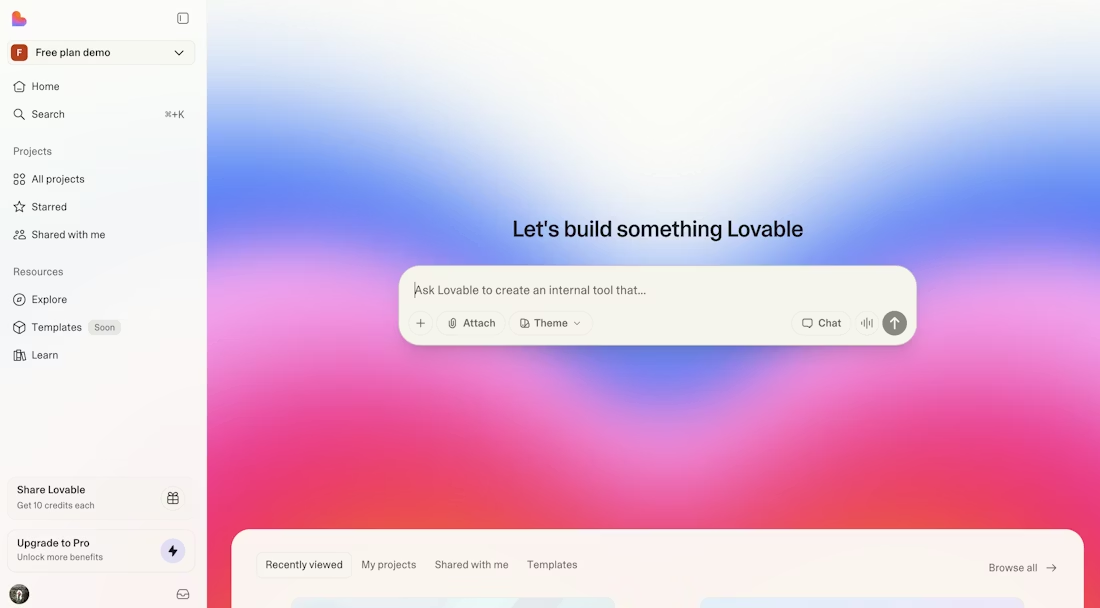
2. Then continue refining fields, interactions, and logic Once the first version is generated, keep adding forms, buttons, page structure, and basic interactions step by step so it gets closer to the real scenario you want to validate or present.
3. Finally use it for validation, demos, or short-term trials If the goal is only prototype validation, project proposals, lightweight pages, or a short-term online version, this is often enough. In many cases, the real value of these tools is that they help teams move into discussion and testing much faster.
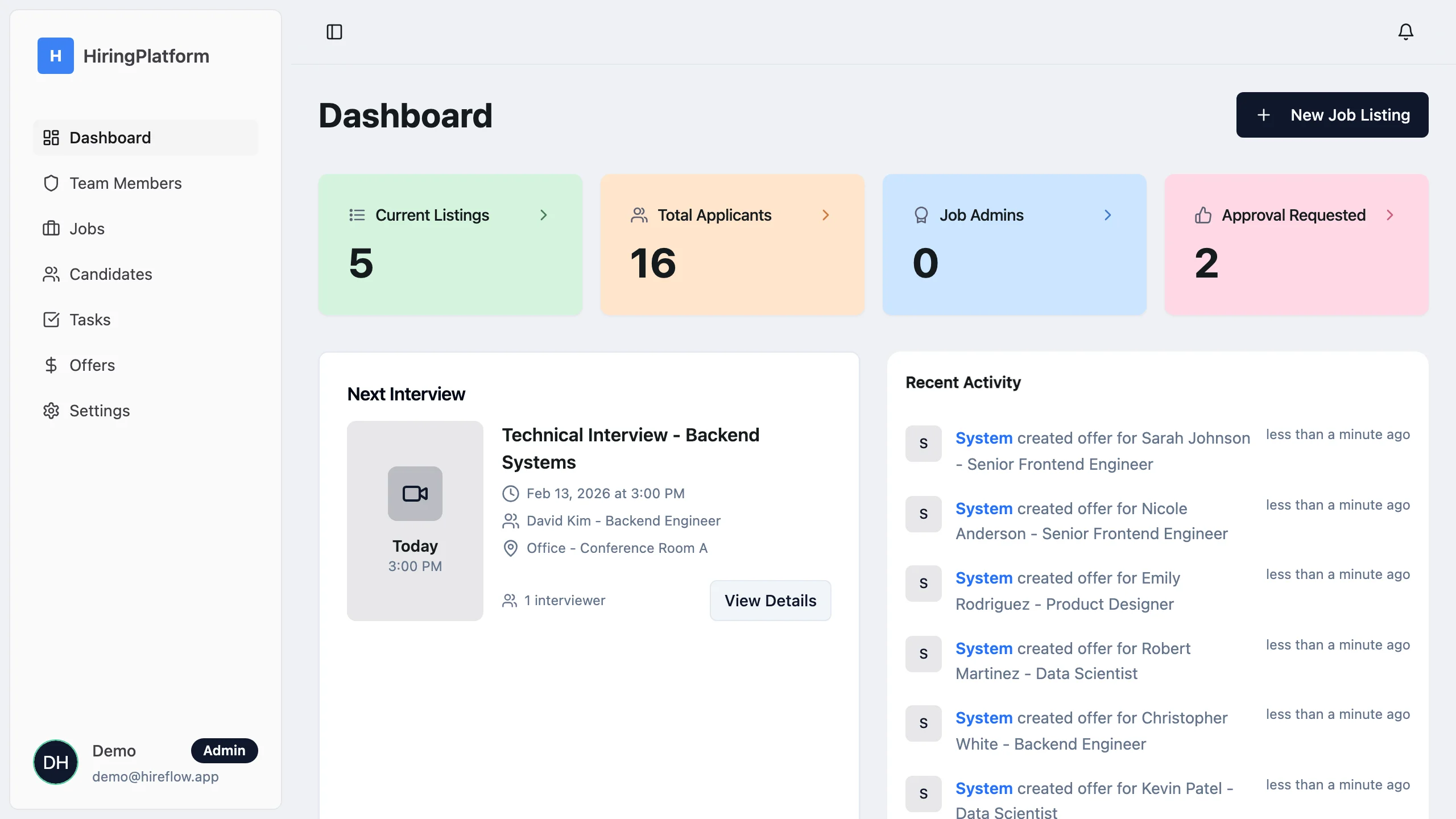
Usage limits
- Better suited to prototypes, demos, and rapid experimentation, but not always to complex production use
- Page generation is very fast, but data structures, permission systems, and workflow logic often still need substantial follow-up work
- It is easy to create the interface and interaction first, but that does not mean the underlying structure is ready for long-term operation
- If the product later needs to support complex permissions, cross-table relationships, database design, or long-term maintenance, it usually still needs to be redesigned
💡Read more: Comparison and Use Cases of 6 Development Tools with RBAC Support
- For many organizations, this approach is better suited to early exploration and validation than to serving directly as the final system form
Related links
Lovable official website: https://lovable.dev/
Lovable documentation: https://docs.lovable.dev/
Method 4: Use online spreadsheets for sharing and collaboration
Core idea
The purpose of this approach is not to turn Excel into an application or system, but to move spreadsheets online and continue using them for sharing, editing, and collaboration.
Typical tools in this category include Microsoft Excel for the web, Google Sheets, and WPS Online Sheets. These are essentially online spreadsheets. The work still revolves around the spreadsheet file itself, but it happens in an online environment rather than a local one.
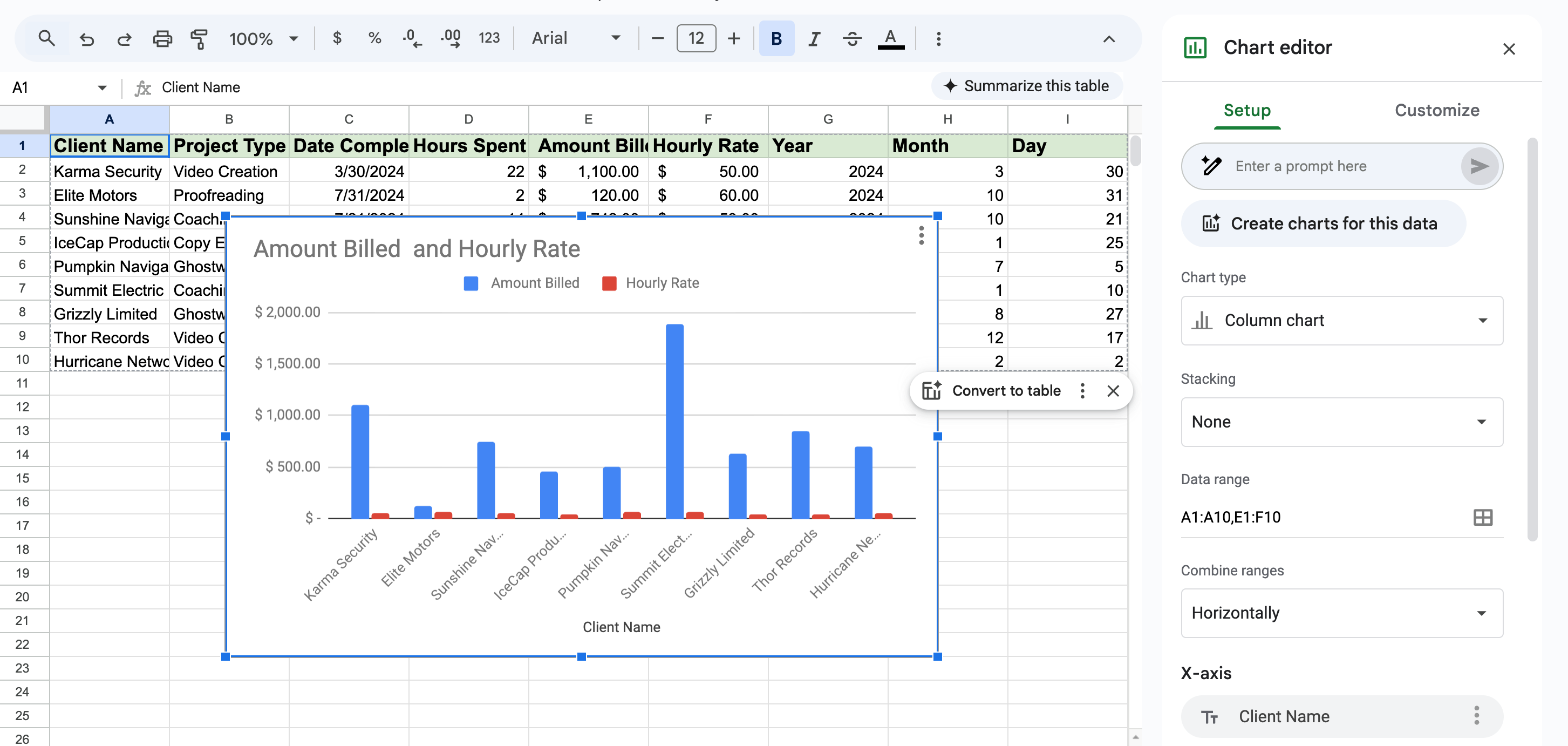
This article uses Google Sheets as the example. It is better suited to scenarios that do not yet require full system-level transformation, but already need better support for shared access and online collaboration. For teams that are already used to Excel, this approach requires almost no relearning and very little structural redesign, so the switching cost is lower.
💡Read more: The 8 Best Google Sheets Alternatives with Full Cost and Capability Analysis
It can support online co-editing, shared links, comments, simple filtering, and basic access control. It is also a practical option for moving routine maintenance spreadsheets online so teams can continue collaborating more easily.
Suitable teams
- Mainly need multiple people to share and edit the same spreadsheet at the same time
- Are mostly facing problems such as files being passed around, version confusion, and inconsistent updates
- Do not yet have a clear need for formal system building
- Have relatively simple business logic focused on recording, summarizing, and maintenance
- Care more about low barriers and immediate usability than long-term extensibility or system capability
Implementation approach
1. Import local Excel files into an online environment Move the Excel files that were originally stored locally or on a shared drive into an online workspace, so the team can access and maintain them from one shared entry point.
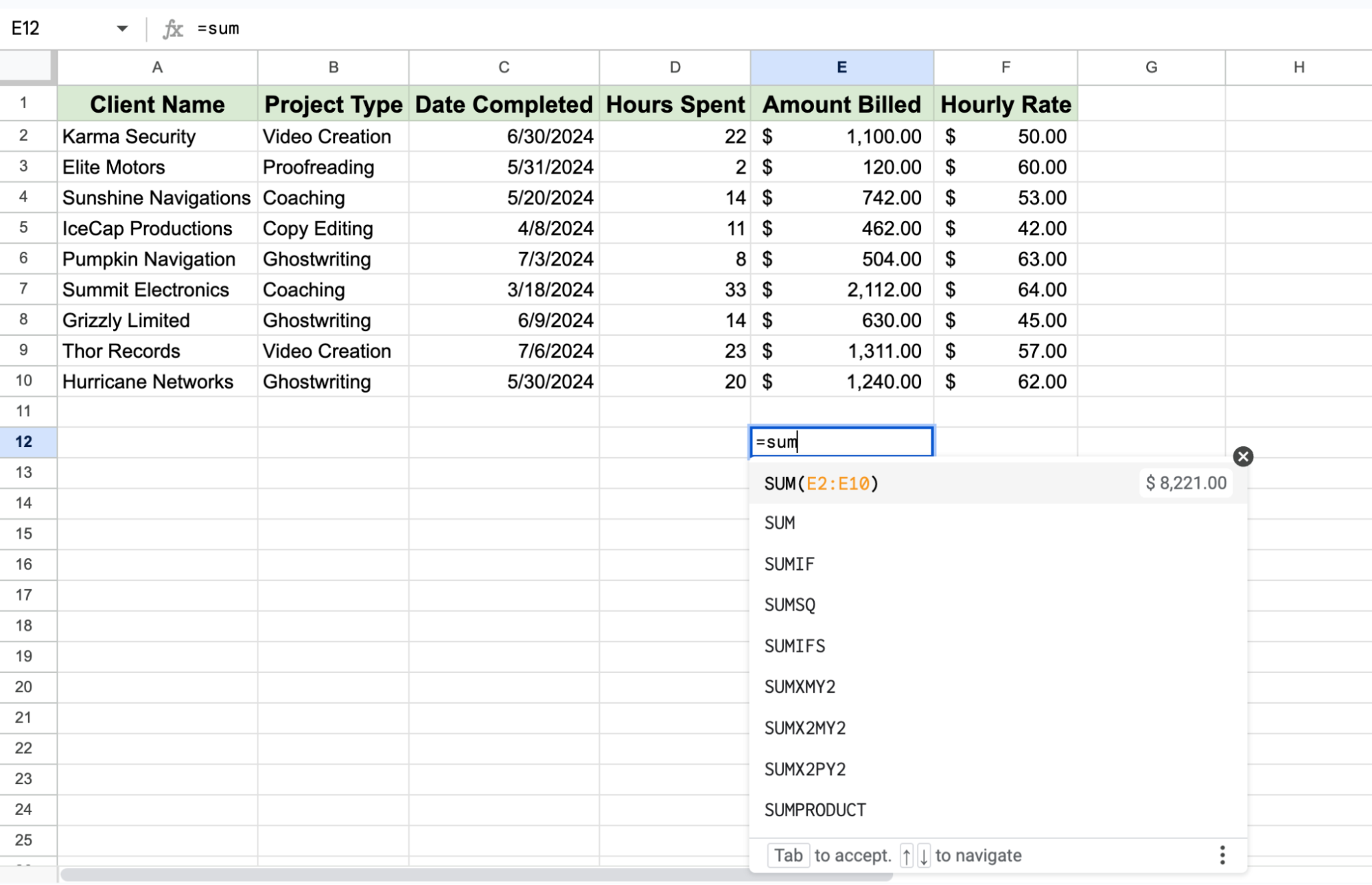
2. Use sharing, permissions, and comments to collaborate Replace email attachments and repeated version updates with online sharing, multi-person editing, comment discussions, and real-time syncing, so the most immediate collaboration issues are addressed first.
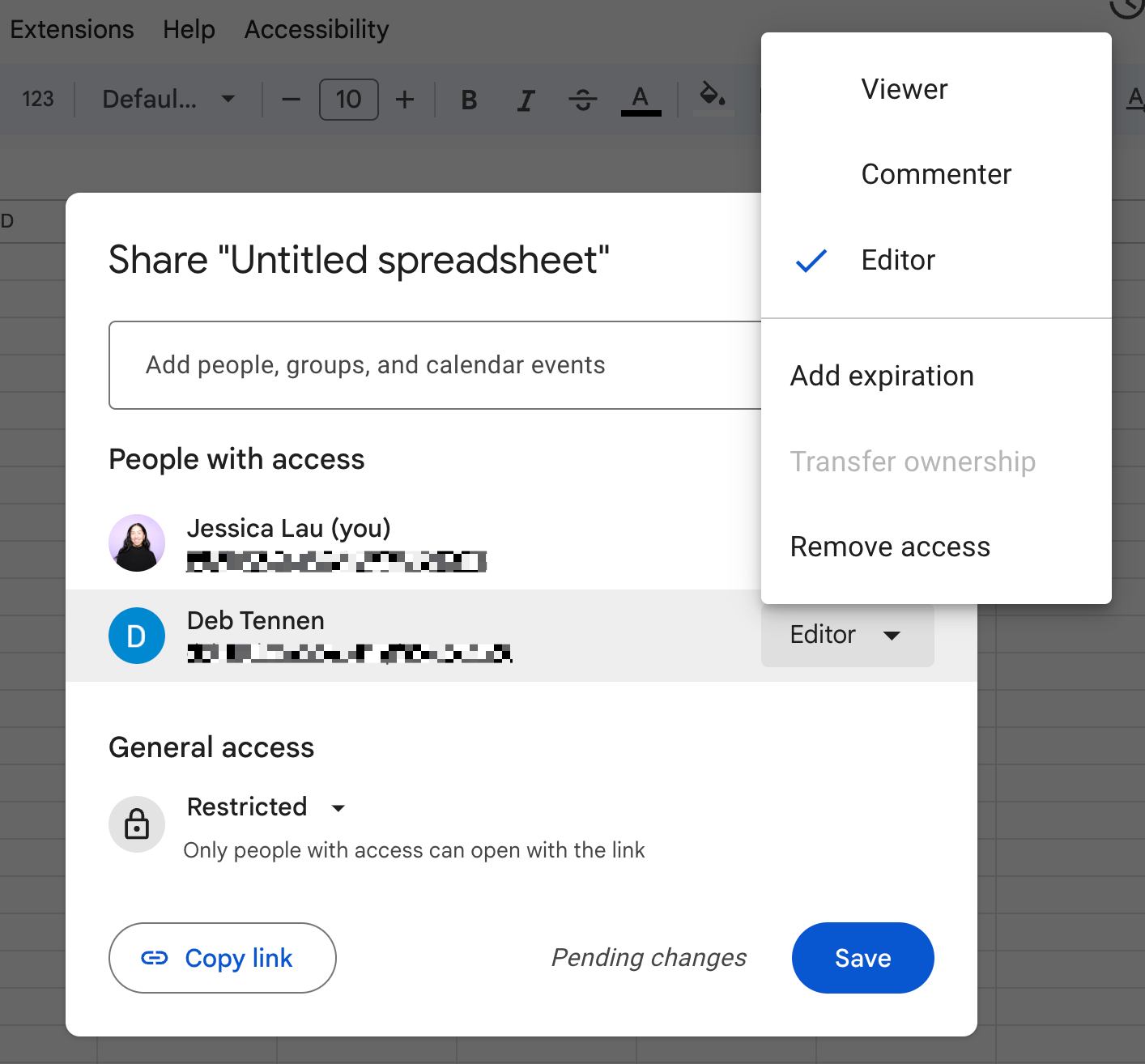
3. Add basic management methods as needed From there, you can further organize the spreadsheet through worksheets, simple permission settings, filtering, and views, making it easier for multiple people to maintain together.
Usage limits
- It is still a spreadsheet at its core, not a formal web application
- Better suited to lightweight collaboration and online sharing than to handling complex business processes
- It can solve version control and collaboration issues first, but may not solve deeper problems related to permissions, workflows, or system structure
- For many organizations, this is the lightest first step, but it is usually not the final destination in the move from Excel to systems
Related links
Google Sheets official website: https://workspace.google.com/products/sheets/
Google Sheets documentation: https://support.google.com/docs/?hl=en
FAQ
1. Excel permissions are not detailed enough. What should we switch to?
If you already need to define who can view, edit, or approve, then it may be time to upgrade directly and use a platform like NocoBase to build CRM, ticketing, approval, or internal management systems.
2. Are AI app generation tools suitable for formal business systems?
They are better suited to prototypes, demos, MVPs, or early experimentation, and not ideal as the final solution for complex business systems. If you simply want to create a first version quickly, tools like Lovable can work well.
3. If multiple Excel sheets need to maintain relationships with each other, which method is more suitable?
If your data has already been split into customer tables, order tables, project tables, and ticket tables, and those relationships need to be maintained continuously, then ordinary spreadsheets are usually no longer enough. In that case, a data model driven platform like NocoBase is a better fit for structured system-level management.
4. At what point should Excel users start considering a move to a real system?
Once Excel starts handling multi-person collaboration, permission control, status changes, and cross-table relationships, it is usually a sign that an upgrade is worth considering. If the workflow is already close to CRM, ERP, ticketing, or project management scenarios, then an extensible no-code platform such as NocoBase may be a suitable next step.
5. If the requirements are still unclear, which tool is the safest place to start?
If the current goal is simply to organize data online and sort out the structure first, then Airtable or Feishu Bitable would usually be a better starting point.
Excel is still an effective tool for many teams in everyday work. But as business needs continue to grow, spreadsheets alone often become less able to support the full workflow. In that situation, introducing more suitable tools or systems is usually the more practical choice. We hope this article gives you a useful reference, and feel free to share it with others who are thinking about the same issue.
Related reading:
- Not Just PostgreSQL: Comparing 5 No-Code/Low-Code Platforms with External Database Support
- Open Source Project Management Tool Selection Guide, 2026 Edition
- How to Build a Custom CRM with PostgreSQL
- Top 20 AI Projects on GitHub to Watch in 2026: Not Just OpenClaw
- Best Open Source AI CRM: NocoBase vs Twenty vs Krayin
- Top 3 Open Source ERP with AI on GitHub: NocoBase vs Odoo vs ERPNext
- 5 Most Popular Open-Source AI Project Management Tools on GitHub
- 6 Best Open-Source AI Ticketing Systems
- 4 Open Source Data Management Tools for Business Systems