

📝 Note: This article was last updated on Jan. 21, 2026. We regularly update the information to ensure you have the latest insights! 😊
Introduction
If you click on this article, you are probably already asking yourself one thing: managing your business with Excel or online spreadsheets feels increasingly frustrating.
I have seen many similar discussions on Reddit as well:
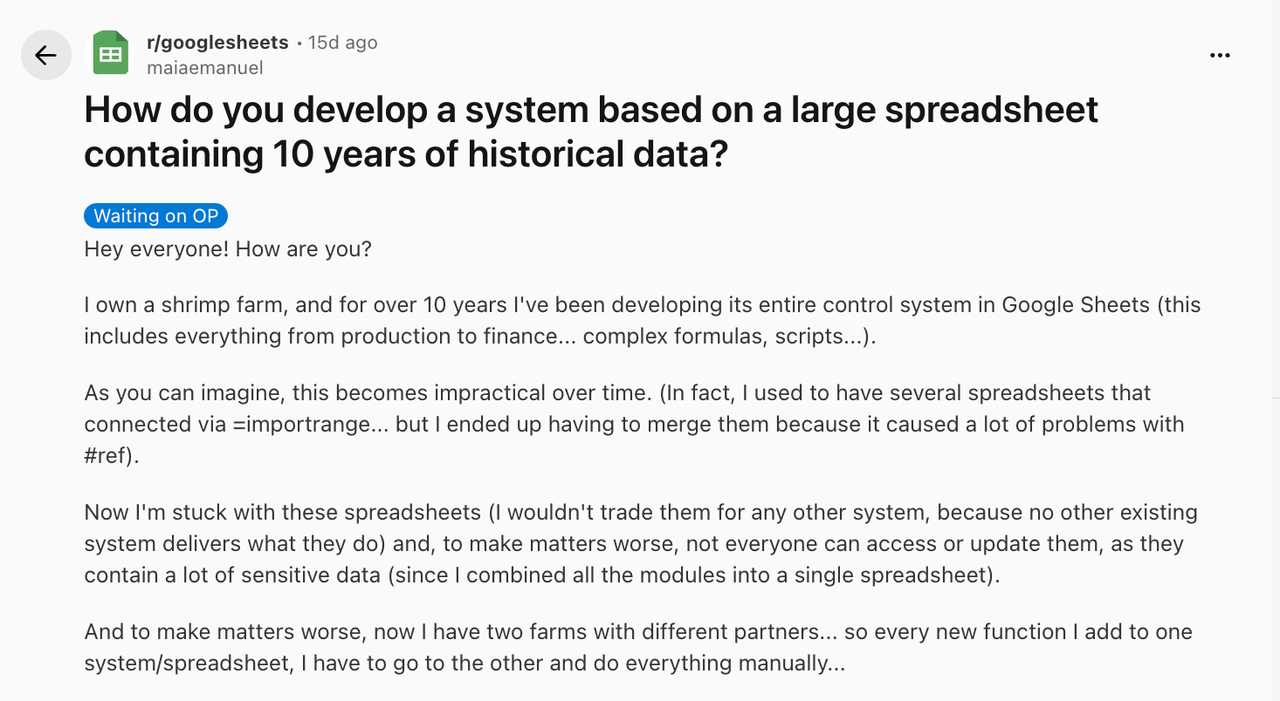
In this article, I will use a real Excel spreadsheet as an example to show how you can quickly turn it into a working business system using NocoBase.
We will start with one of the most common setups: a client project spreadsheet.

At first, this spreadsheet was only meant to record basic client and project information. As requirements grew, more and more columns were added.
Over time, it slowly evolved into a complex and hard-to-manage sheet.
This is the reality for many teams that rely on Excel to run their business.
Now, it is time to change that.
💬 Hey, you’re reading the NocoBase blog. NocoBase is the most extensible AI-powered no-code/low-code development platform for building enterprise applications, internal tools, and all kinds of systems. It’s fully self-hosted, plugin-based, and developer-friendly. → Explore NocoBase on GitHub
Step 1: Splitting the Data
The Excel sheet contains more than a dozen columns, with different types of information all mixed together.
In NocoBase, the first step is to “translate” this sheet into a much clearer structure.
Let’s start by looking at the original columns in the Excel file:
Project ID
Client Name
Client Region
Industry
Project Name
Contract Type
License Seats
Start Date
Target Go Live
Status
Latest Invoice Amount (USD)
Latest Invoice Date
Payment Status
Owner
Notes
This is very common in Excel. But in a real system, information should be split into multiple tables with a much clearer structure. (You can also use AI to help break your spreadsheet data apart.)
After this step, the data model looks like this:
Clients
name
region
industry
 → hasMany Projects

Projects
project_name
start_date
go_live
status
owner
notes
client_id (belongsTo Clients)
 → hasMany Contracts
 → hasMany Invoices

Contracts
contract_type
license_seats
project_id (belongsTo Projects)

Invoices
amount
invoice_date
payment_status
project_id (belongsTo Projects)
The benefits of splitting your data are immediately clear:
- Cleaner views
Clients and projects are separated, yet still connected whenever needed
- Easier workflows
Contracts stay with contracts, invoices stay with invoices, so changes do not ripple through the entire system
- Fine-grained access control
Sales teams see clients, finance teams see invoices
💡 Further reading: How to design a solid data model
In NocoBase, you can ask the AI employee Orin to create these tables and fields for you.
Simply send her your requirements.
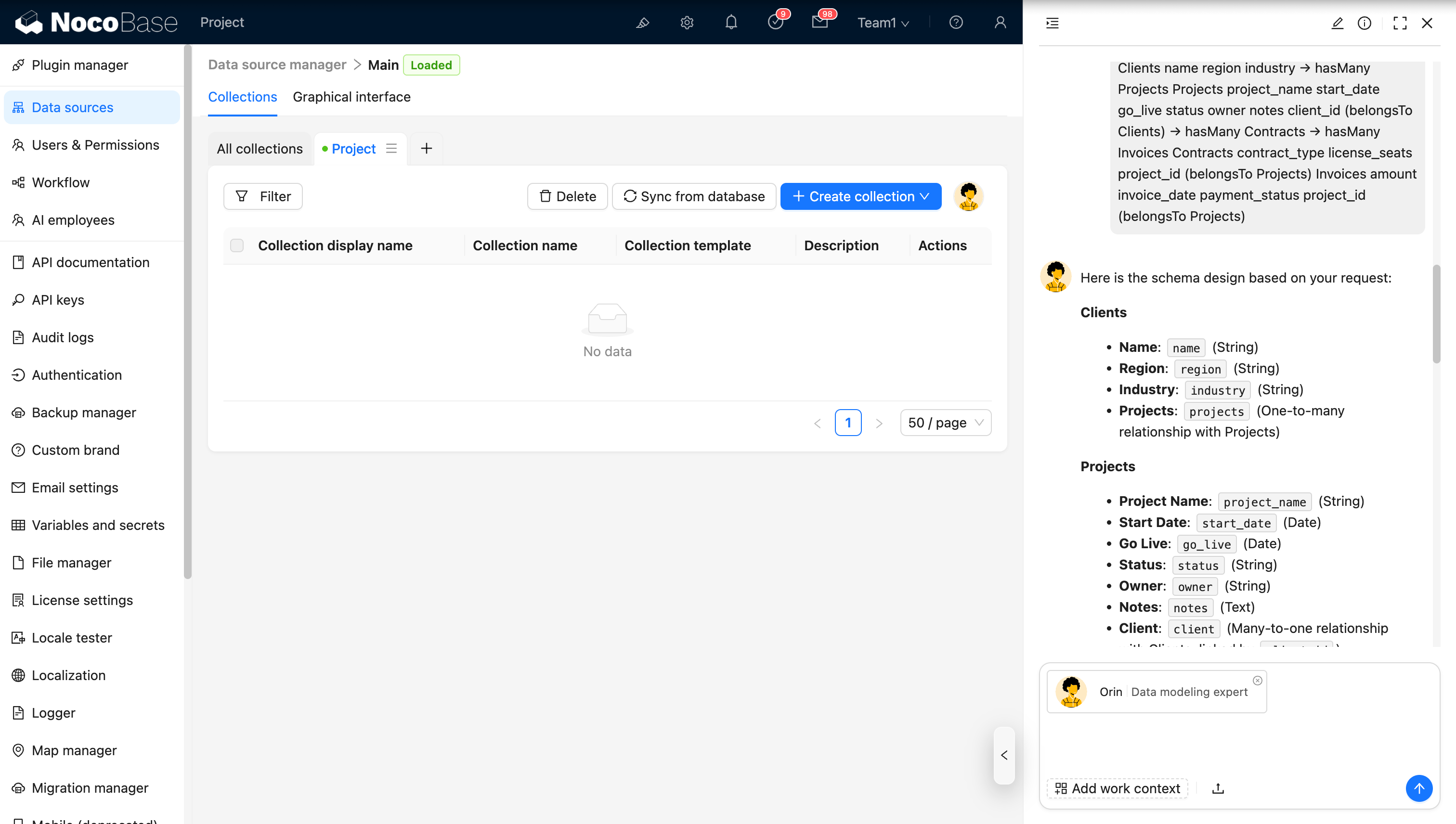
She will generate everything right away. All you need to do is review and confirm that the tables and fields are correct.
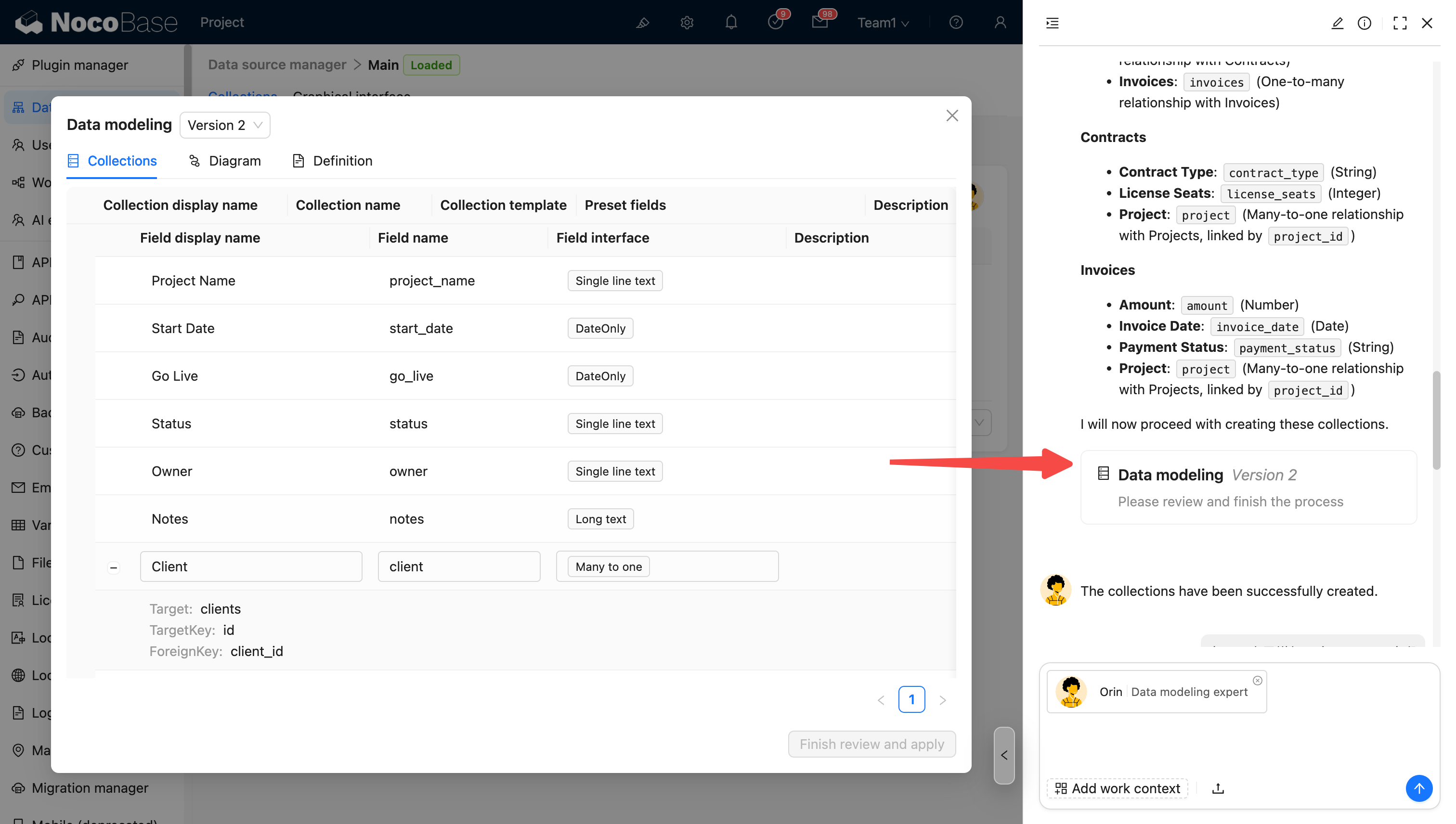
At this point, all four tables and their fields have been created successfully.

💡 To dive deeper into the data layer, you can explore the following tutorials and documentation:
Data Sources - NocoBase Documentation
Orin Data Modeling Expert - NocoBase Documentation
Step 2: Displaying the Data
Once the data structure is clearly separated, the next step is to present it in a more user-friendly way.
In Excel, you are usually limited to scrolling, filtering, and freezing columns to work with your data.
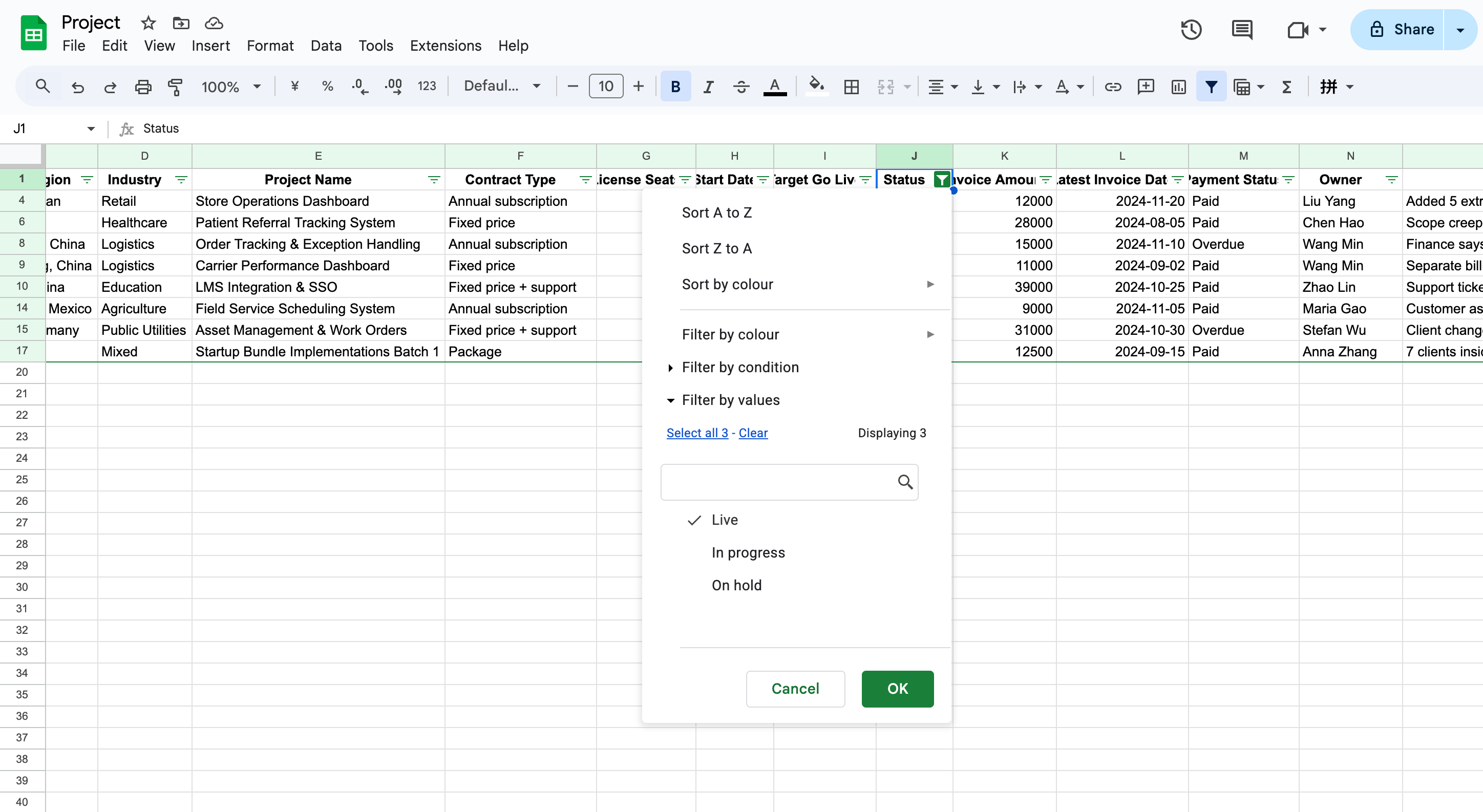
In NocoBase, the frontend is not constrained by these limitations. Each type of data can have its own dedicated view and be displayed in the most appropriate format.
The setup is straightforward. Click the top-right corner to enter edit mode and start by creating a few pages. On each page, you can add blocks that best fit the data you want to show.

Let’s begin with the Clients table. We can display client names, regions, and industries using a list view.
Add a table block.
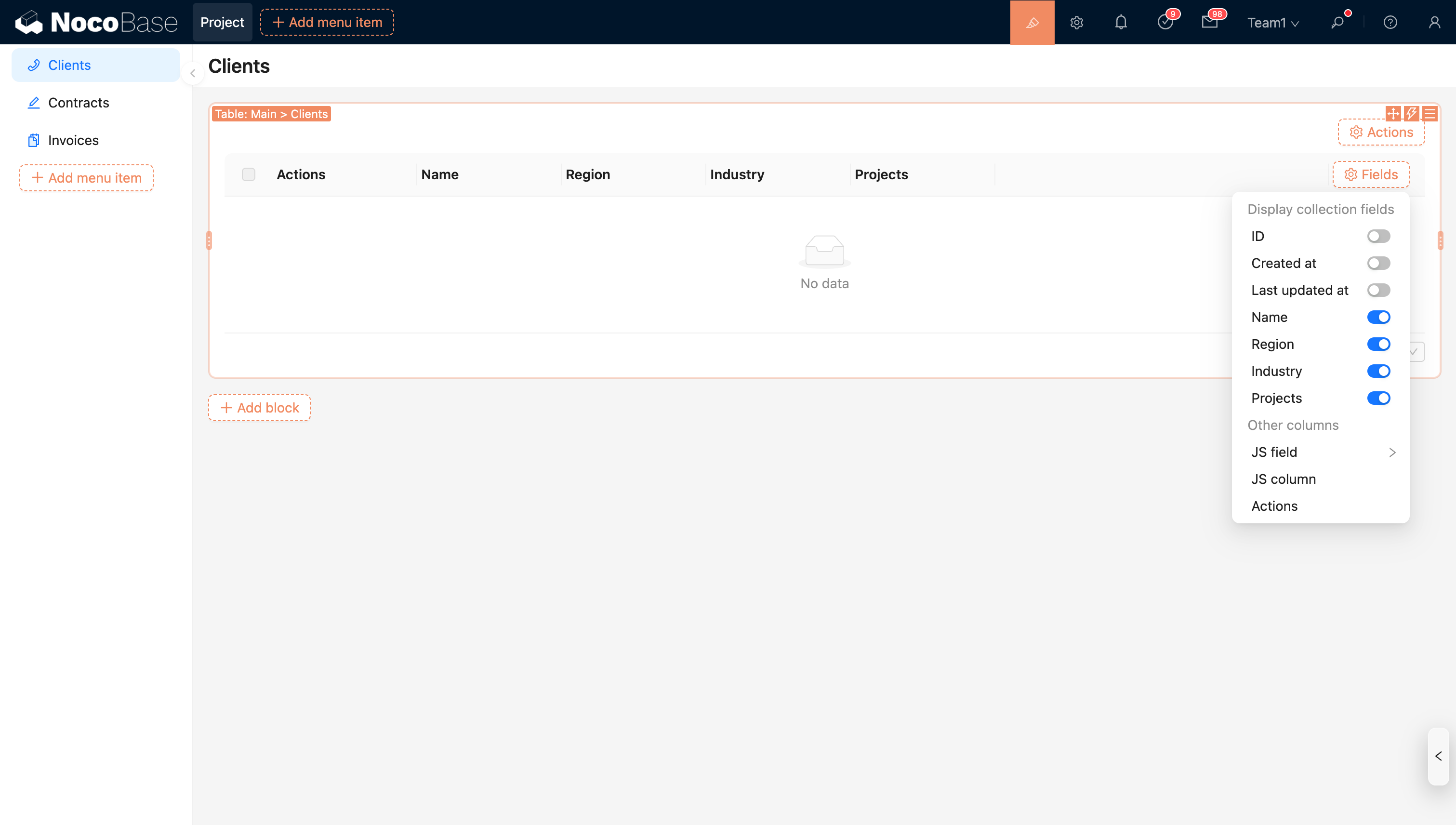
At this point, there is no data yet. Click “Actions” in the top-right corner of the block and choose “Import”.

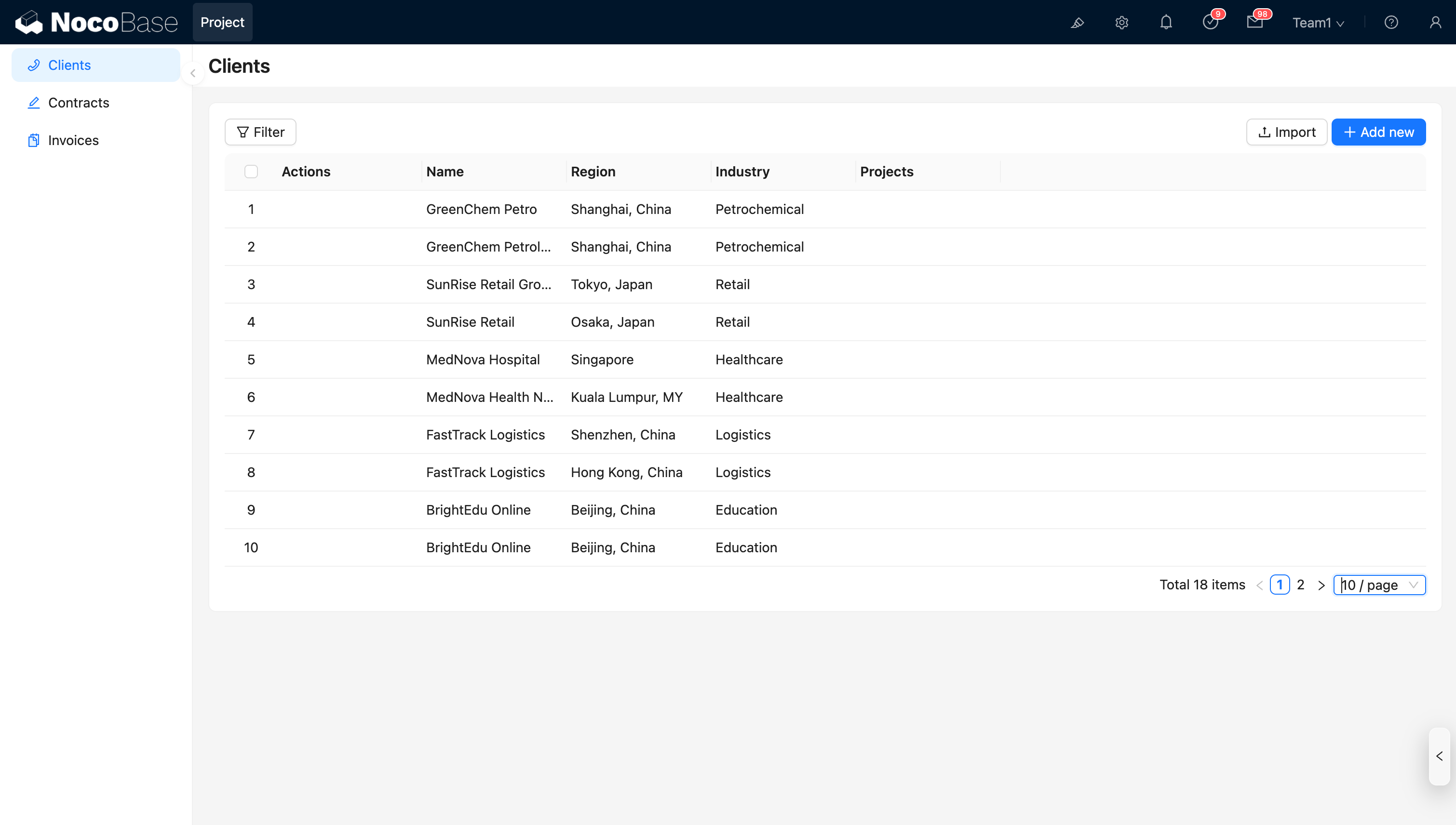
Then, follow the prompts to import the data from your original Excel file.

After the import, you will have a clean and readable client table.
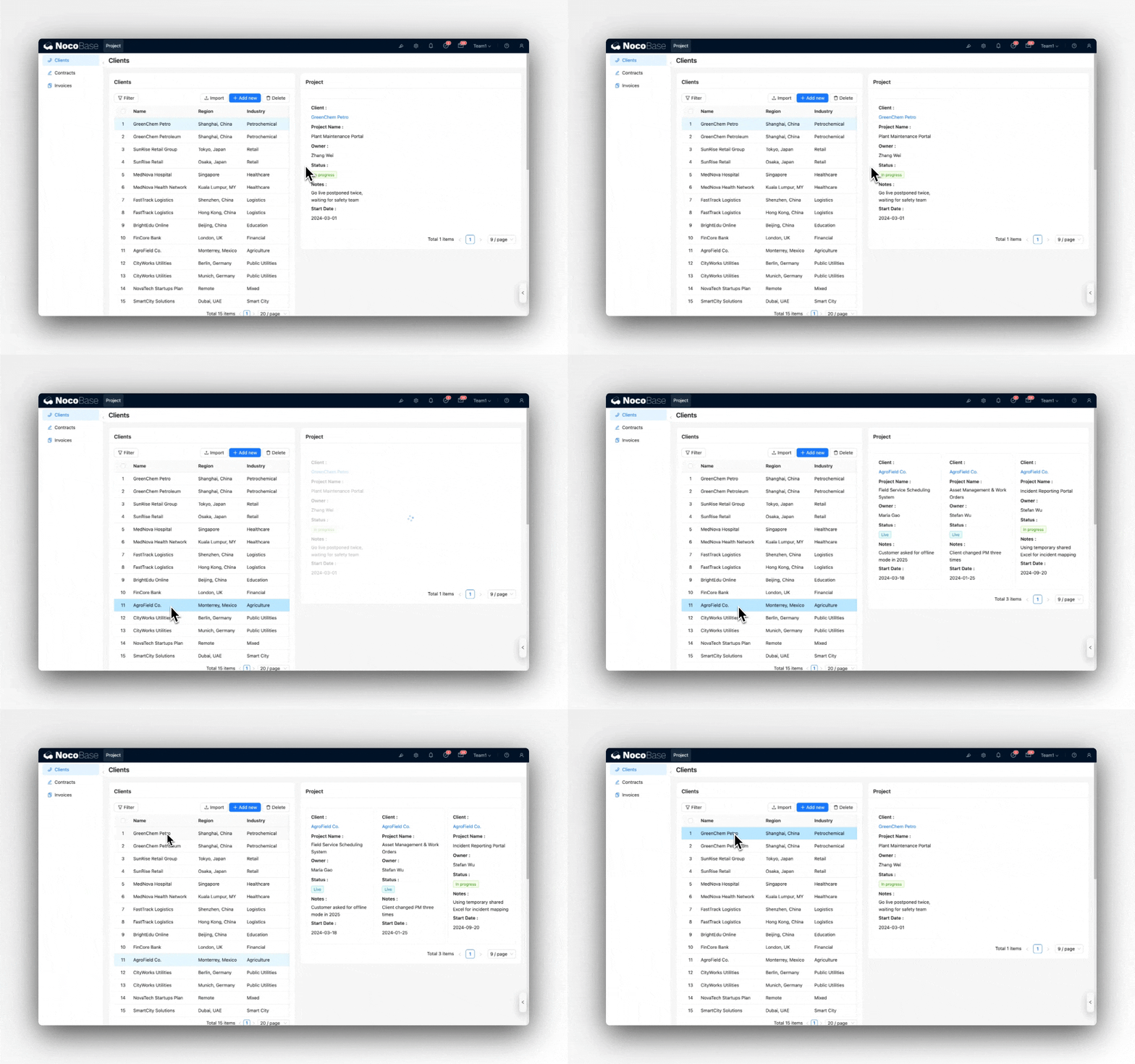
Next, repeat the same process to create views for the other tables. Each type of data has its own optimal way to be presented.
For example, I configured it so that clicking a client name reveals the related projects.
These views bring several advantages:
- Information is clearly separated instead of mixed together
- Each page shows only what the current user needs to focus on
- It is far more readable than an Excel sheet
- Any field can be sorted, filtered, or searched at any time
- Data across tables can be linked and explored interactively
Once you select a data table, NocoBase automatically generates a clean, interactive interface. You can further adjust column order, filters, and display options as needed.
After turning your Excel data into a structured model, data visualization becomes effortless.
💡 To learn more about data presentation, check out our tutorials and documentation:
Step 3: Workflow Automation
With a clear data structure and well-defined frontend views, we can now tackle Excel’s biggest limitation: workflows are entirely manual.
In Excel, even the simplest business process often looks like this:
- Create a record, then send an email or message to someone for approval
- Manually write the approval result back into Excel
- If inventory, contracts, or financial data are involved, sync everything by hand across multiple sheets
In NocoBase, the same process becomes automatic:
- Submit a project or contract → the system enters an approval workflow automatically
- Once approved → related data tables are updated automatically
All of this can be set up using NocoBase workflows.

💡 To learn more about how workflows work, you can explore our tutorials and documentation:
Workflow - NocoBase Documentation
Step 4: Permissions
One of Excel’s biggest limitations is access control. Even Google Sheets offers only basic permission options.
In Excel, if different departments need to see only their own projects, you often end up maintaining multiple versions of the same spreadsheet.
In NocoBase, this is much easier to manage.
For each role, you can define:
- Which records they can access (row-level permissions)
- Which fields they can see (field-level permissions)
- Which actions they are allowed to perform: view, create, edit, or delete
- Whether they can participate in specific workflow steps
- Whether they are allowed to export data

For example, you might configure the system so that:
- Sales teams can only view their own clients and projects
- Finance teams can see financial data and invoices across all projects, but cannot modify project details
When users open the system, they see exactly what they need to see, and nothing more. This avoids unnecessary information exposure and prevents accidental interference with others’ work.
💡 To learn more about permission configuration, check out our tutorials and documentation:
Users and Permissions - NocoBase Documentation
Conclusion
Turning Excel into a real business system that supports collaboration, automation, and long-term growth may sound like a major undertaking.
But at this point, one thing should be clear:
- Data structure is not hard to organize. AI can help break it down, and NocoBase AI employees can assist with creating it
- Frontend views are built through visual configuration, allowing rich interactions without writing code
- Workflow automation saves a significant amount of time otherwise spent on manual updates
- Permission management makes the system safer and more reliable
With just a few hours of setup, you can build a business system tailored to your needs using NocoBase.
You can try all the features mentioned in this article in the NocoBase demo: https://nocobase.com/en/demo
Related reading:
- Top 5 Open-Source AI Internal Tools on GitHub
- The 8 Best Google Sheets Alternatives (Specs & Pricing)
- 6 Open-Source No/Low-Code Tools for Building PoCs
- A Developer’s Technical Decision Guide to No-Code and Low-Code (2026)
- 6 In-Depth Comparison of RBAC in Enterprise-Grade No-Code/Low-Code Platforms
- 14 AI-Powered Low-Code Platforms on GitHub Worth Watching
- Top 11 Open Source No-Code AI Tools with the Most GitHub Stars
- Top 18 Open Source AI Agent Projects with the Most GitHub Stars