Bangun dengan AI agent Anda
Build a NocoBase app — AI Workflow Automation System: native workflows with AI-employee nodes and an execution flow. Match the layout and signature visuals of this reference prototype: https://static-docs.nocobase.com/solution/templates/11-ai-workflow-automation.html
Tautan prototipe (HTML) di prompt adalah desain yang sudah kami siapkan, hanya untuk mendemonstrasikan kemampuannya; NocoBase tidak menyarankan membuat satu sistem utuh hanya dari satu prompt. Saat membangun dengannya, padukan dengan skill “prototype reproduction” (nocobase-prototype-repro) di NocoBase Skills agar mendapat hasil yang baik.
Sebelum memulai, ikuti panduan cepat AI agent untuk menginstal NocoBase dan menghubungkan agent Anda. Hasil AI dapat bervariasi; bergantung pada model dan kompleksitas sistem, mungkin diperlukan penyesuaian atau beberapa putaran tambahan.
Pendahuluan
Gunakan AI agent favorit Anda dan NocoBase untuk membangun sistem otomasi alur kerja AI yang dapat dikustomisasi, andal, dan terus berkembang — mencakup manajemen event pemicu bisnis, pemeriksaan kondisi, pemrosesan AI, pembaruan data, hasil eksekusi, dan riwayat jalannya alur kerja.
Anda dapat menyalin prompt di bawah dan membiarkan AI agent menghasilkan struktur dasar sistem otomasi alur kerja AI di NocoBase, lalu menyesuaikan pemicu, kondisi, node AI, dan tindakan lanjutan secara visual.
Sistem ini cocok untuk skenario seperti saran inventaris, klasifikasi tiket, analisis klausul kontrak, ringkasan basis pengetahuan, penerbitan konten, sinkronisasi aset, saran orientasi karyawan, serta kasus mana pun di mana AI harus berpartisipasi dalam proses bisnis secara otomatis.
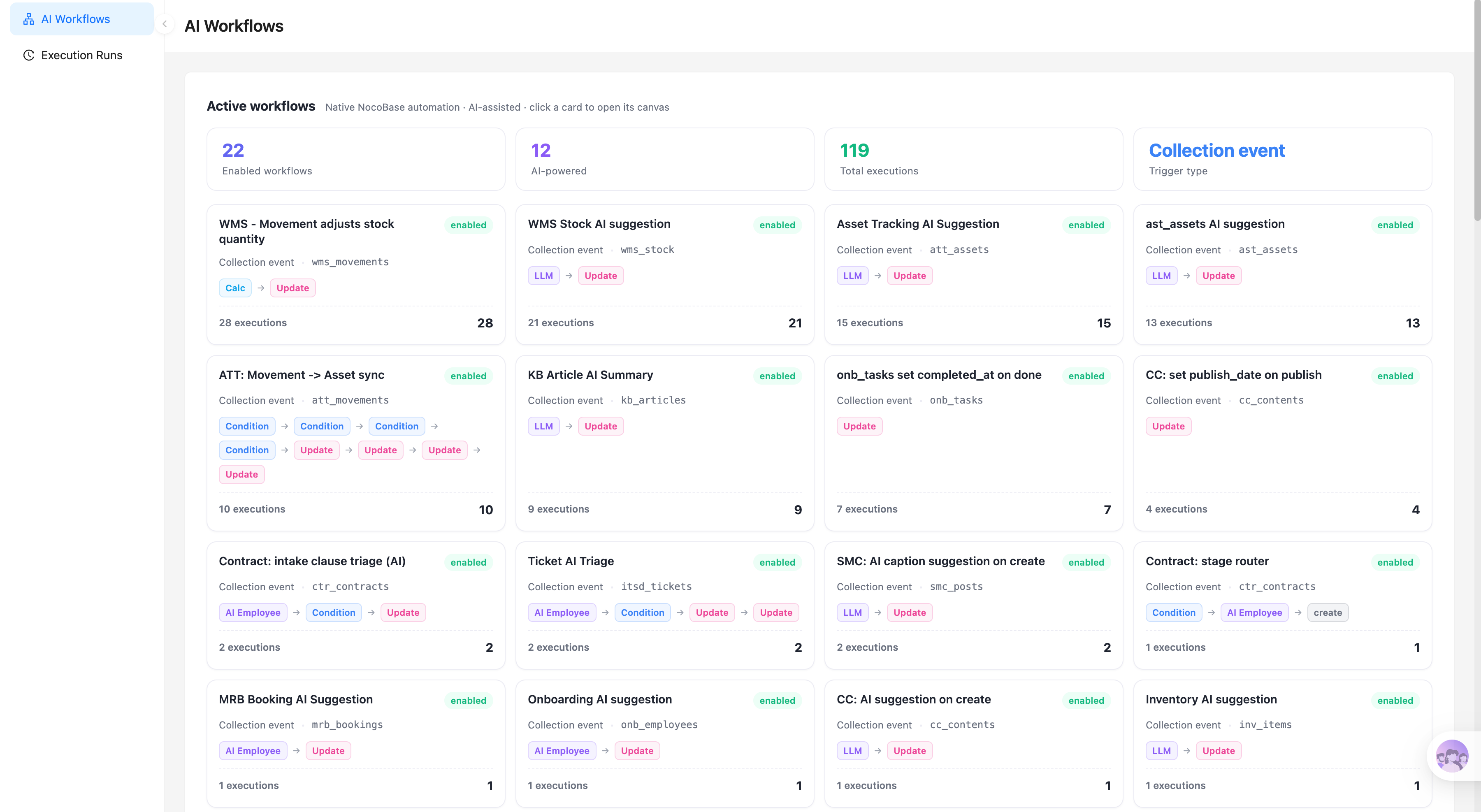
Daftar alur kerja AI:
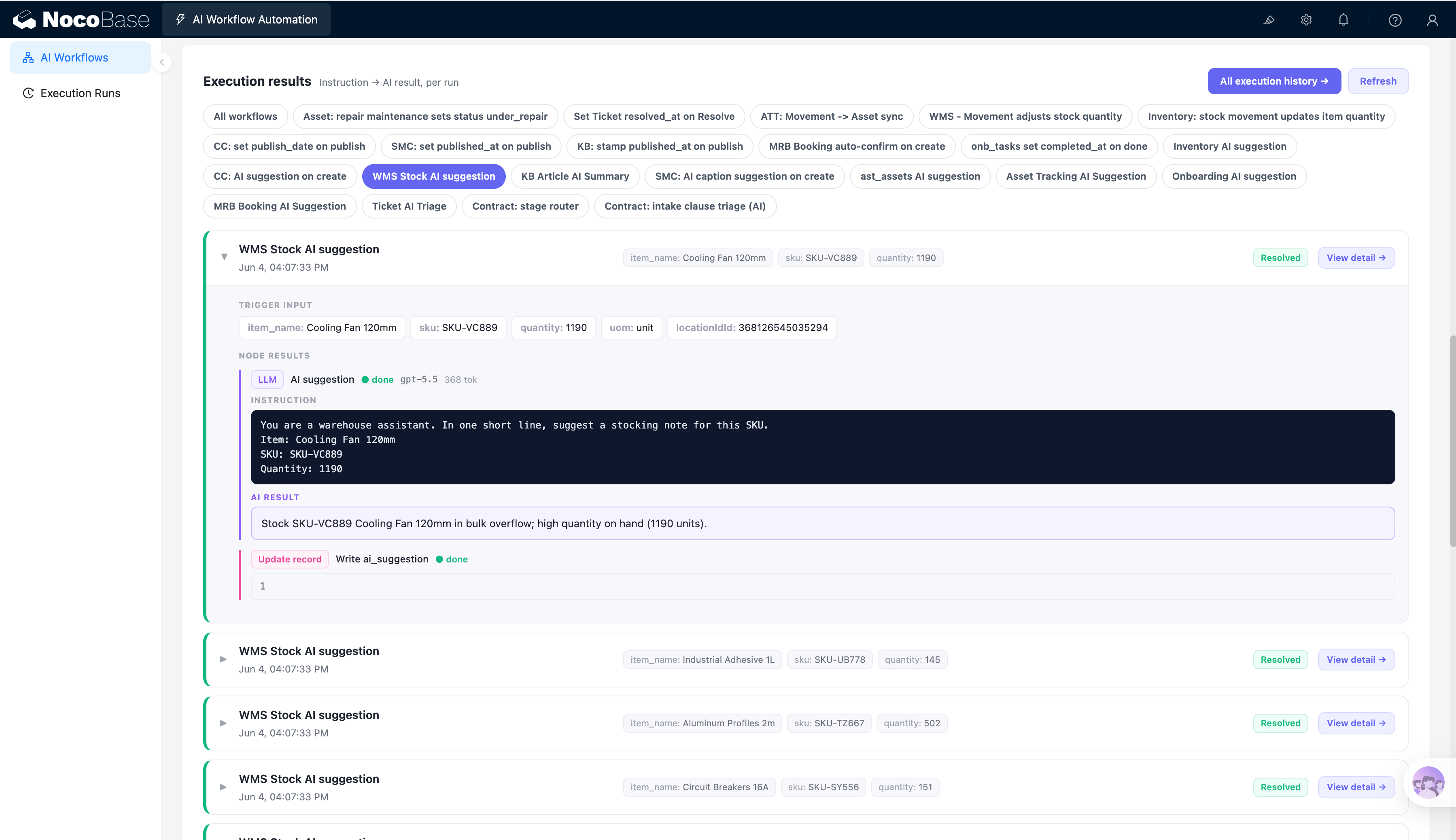
Hasil eksekusi alur kerja:
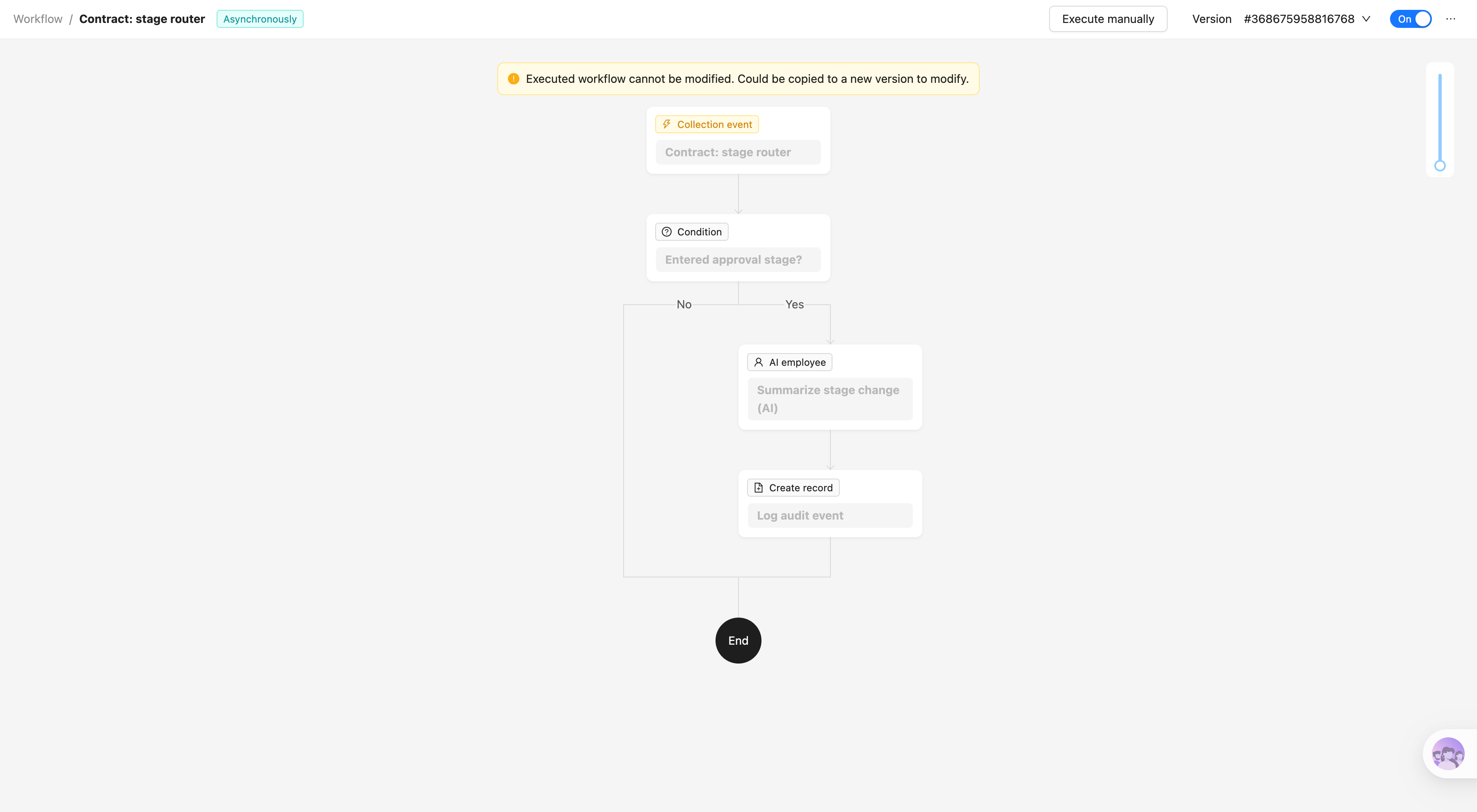
Kanvas alur kerja visual:
Masalah apa yang diselesaikan oleh sistem otomasi alur kerja AI?
Banyak tim yang sudah menggunakan AI untuk menghasilkan konten, merangkum informasi, atau memberikan saran, tetapi tindakan-tindakan ini biasanya tetap berada dalam percakapan sekali pakai. Pengguna harus menyalin data secara manual, memanggil AI, memeriksa hasilnya, dan menulis output kembali ke dalam sistem bisnis — seluruh proses masih bergantung pada pekerjaan manual.
Dengan sistem otomasi alur kerja AI, AI dapat berpartisipasi langsung dalam proses bisnis yang sudah ada. Misalnya, ketika catatan inventaris berubah, saran pemesanan ulang dihasilkan secara otomatis; ketika artikel basis pengetahuan dibuat, ringkasan dihasilkan secara otomatis; ketika tiket dikirimkan, jenisnya diklasifikasikan secara otomatis; ketika kontrak memasuki tahap persetujuan, perubahan klausul dirangkum secara otomatis.
Setiap alur kerja dapat dipicu oleh event bisnis dan menjalankan langkah-langkah kalkulasi, pemeriksaan kondisi, LLM, AI employee, pembaruan data, atau pembuatan catatan dalam urutan yang dikonfigurasi. Input AI, instruksi, output, dan status penulisan balik akhir semuanya disimpan dalam catatan eksekusi.
Dengan cara ini, AI bukan lagi sekadar alat obrolan yang berdiri sendiri — ia menjadi node eksekusi otomatis di dalam proses bisnis. Tim dapat melihat dengan jelas mengapa setiap alur kerja dipicu, apa yang diproses AI, hasil apa yang dihasilkan, dan apakah data berhasil diperbarui.
Fitur utama
Manajemen alur kerja AI
- Manajemen alur kerja terpusat: Lihat nama alur kerja, jenis pemicu, status aktif, dan total jumlah eksekusi di satu tempat.
- Kontrol aktif dan nonaktif: Aktifkan atau nonaktifkan alur kerja tertentu dengan cepat sesuai kebutuhan bisnis.
- Ikhtisar runtime: Lacak jumlah alur kerja yang aktif, alur kerja AI, dan akumulasi eksekusi untuk memahami penggunaan otomasi.
Event bisnis dan mode eksekusi
- Pemicu event data: Mulai alur kerja secara otomatis ketika catatan dibuat, diperbarui, atau event koleksi lainnya terjadi.
- Eksekusi manual: Jalankan alur tertentu secara manual untuk pengujian atau pemrosesan data bisnis tertentu.
- Jalankan asinkron: Pindahkan tugas AI yang berjalan lama ke latar belakang untuk mengurangi dampak pada operasi pengguna saat ini.
Orkestrasi alur visual
- Kanvas node: Hubungkan pemicu, node pemrosesan, dan node akhir di kanvas visual untuk melihat alur lengkap secara sekilas.
- Cabang kondisional: Putuskan apakah akan memanggil AI — dan tindakan lanjutan mana yang akan dijalankan — berdasarkan nilai kolom atau aturan bisnis.
- Konfigurasi urutan eksekusi: Gabungkan node kalkulasi, kondisi, pemrosesan AI, dan operasi data secara fleksibel.
Node AI dan pemrosesan data
- Node LLM: Menangani tugas-tugas yang terdefinisi dengan baik seperti ringkasan konten, klasifikasi, ekstraksi informasi, dan pembuatan teks.
- Node AI employee: Menyelesaikan pemrosesan bisnis yang lebih komprehensif berdasarkan peran, prompt, dan alat yang telah ditetapkan.
- Node operasi data: Membuat catatan, memperbarui kolom, dan menulis hasil yang dihasilkan AI kembali ke dalam data bisnis.
Hasil eksekusi dan pelacakan riwayat
- Detail eksekusi lengkap: Tampilkan input pemicu, instruksi AI, output model, status node, dan hasil penulisan balik akhir.
- Penyaringan riwayat eksekusi: Tinjau waktu, parameter input, dan status setiap jalannya per alur kerja.
- Diagnosis masalah: Gunakan input dan output tingkat node untuk menentukan apakah kegagalan terjadi pada kondisi, panggilan AI, atau pembaruan data.
Pengujian dan pemeliharaan berkelanjutan
- Uji coba manual: Jalankan alur kerja sebelum mengaktifkannya untuk memverifikasi kondisi, output AI, dan penulisan balik data.
- Versioning alur kerja: Simpan versi konfigurasi yang berbeda untuk penyesuaian berkelanjutan dan rollback.
- Ekstensi node fleksibel: Tambahkan kondisi baru, kemampuan AI, dan tindakan lanjutan seiring bisnis berkembang, tanpa membangun ulang seluruh alur.
Mengapa membangun sistem otomasi alur kerja dengan AI dan NocoBase?
Jika Anda membangun dari nol dengan vibe coding biasa, setiap skenario otomasi AI baru biasanya berarti mengimplementasikan ulang event listening, kueri data, panggilan model, logika kondisi, penanganan error, dan penulisan balik hasil. Seiring alur bertambah, kode menjadi semakin kompleks dan eksekusi menjadi sulit dilacak.
NocoBase sudah menyediakan kemampuan dasar sistem bisnis — model data, alur kerja, pemeriksaan kondisi, pembaruan catatan, izin, dan riwayat operasi. Anda dapat langsung memasukkan node LLM atau AI employee ke dalam kemampuan-kemampuan ini, membiarkan AI bekerja dengan data dan proses bisnis nyata daripada berada di luar sistem.
Misalnya, setelah catatan inventaris dibuat, saran inventaris dapat dihasilkan secara otomatis; setelah artikel basis pengetahuan ditambahkan, ringkasan dapat dihasilkan secara otomatis; setelah status kontrak berubah, AI dapat merangkum perubahan tahapan lalu membuat catatan audit. Semua alur ini dapat dilihat dan disesuaikan di kanvas visual.
Input, instruksi AI, output, dan status pembaruan data dari setiap eksekusi dicatat, sehingga memudahkan tim meninjau hasil dan menemukan masalah. Bagi tim yang mengutamakan keterlacakan, kemampuan pemeliharaan, dan iterasi jangka panjang, NocoBase adalah pilihan yang lebih baik untuk membangun otomasi alur kerja AI yang masuk ke dalam penggunaan bisnis nyata.
FAQ
- Apa bedanya otomasi alur kerja AI dengan alur kerja biasa?
Alur kerja biasa terutama menjalankan aturan yang telah ditentukan sebelumnya, seperti pemeriksaan kondisi, pengiriman notifikasi, pembuatan catatan, atau pembaruan kolom.
Alur kerja AI dapat menambahkan node LLM atau AI employee ke dalam alur, membiarkan sistem melakukan ringkasan, klasifikasi, ekstraksi informasi, pembuatan konten, dan rekomendasi berdasarkan konteks bisnis. AI menangani tugas-tugas tidak terstruktur, sementara alur kerja mengontrol kondisi pemicu, urutan eksekusi, dan penulisan balik hasil.
- Apa bedanya alur kerja AI dengan skrip otomasi yang dihasilkan oleh vibe coding?
Vibe coding dapat menghasilkan skrip otomasi dengan cepat, tetapi seiring skenario bisnis berkembang, event triggering, panggilan model, izin data, penanganan error, logging, dan pemeliharaan versi semuanya membutuhkan pengembangan berulang.
NocoBase menempatkan node AI di dalam model data dan sistem alur kerja yang sudah ada. Tim dapat mengonfigurasi pemicu, cabang kondisional, pemrosesan AI, dan operasi data di kanvas visual serta meninjau setiap eksekusi — lebih cocok untuk mengelola otomasi bisnis yang berjalan terus-menerus daripada memelihara skrip sekali pakai yang tersebar.
- Event bisnis mana yang dapat memicu alur kerja AI?
Alur kerja AI dapat dipicu secara otomatis oleh event koleksi seperti pembuatan atau pembaruan catatan, atau dieksekusi secara manual oleh pengguna.
Misalnya, hasilkan saran pemesanan ulang setelah catatan inventaris diperbarui, klasifikasikan jenis masalah setelah tiket dibuat, hasilkan ringkasan setelah artikel basis pengetahuan ditambahkan, atau analisis perubahan klausul secara otomatis setelah kontrak memasuki tahap tertentu.
- Bisakah saya menetapkan kondisi sebelum memanggil AI?
Ya. Anda dapat terlebih dahulu memeriksa apakah data memenuhi kondisi yang ditentukan sebelum memasuki node LLM atau AI employee.
Misalnya, hasilkan saran pemesanan ulang hanya ketika inventaris turun di bawah level aman, panggil analisis AI hanya untuk tiket berprioritas tinggi, atau buat catatan audit hanya setelah kontrak memasuki tahap persetujuan. Ini mengurangi panggilan model yang tidak perlu dan menjaga alur tetap selaras dengan aturan bisnis nyata.
- Bisakah hasil yang dihasilkan AI ditulis kembali ke sistem bisnis secara langsung?
Ya. Setelah AI selesai memproses, alur dapat dilanjutkan dengan node pembaruan catatan atau pembuatan catatan, menyimpan ringkasan, klasifikasi, saran, tag, atau hasil analisis ke dalam tabel yang sesuai.
Misalnya, tulis saran inventaris kembali ke catatan inventaris, simpan hasil klasifikasi tiket ke kolom tiket, atau buat catatan audit baru berdasarkan hasil analisis kontrak.
- Bisakah saya melihat input mana yang digunakan AI dan hasil apa yang dihasilkan setiap kali?
Ya. Detail eksekusi menampilkan input pemicu, instruksi yang digunakan oleh node AI, output model, hasil node berikutnya, dan status penulisan balik data akhir.
Ini berarti tim tidak hanya dapat melihat apakah alur berhasil, tetapi juga mengapa AI menghasilkan hasil tertentu — berguna untuk memvalidasi output, menyempurnakan prompt, dan memecahkan masalah anomali.
- Bagaimana cara menemukan masalah ketika alur kerja AI gagal?
Setiap jalannya menyimpan waktu eksekusi, status node, parameter input, dan hasil output. Tim dapat menggunakan riwayat eksekusi untuk menentukan apakah kegagalan terjadi pada langkah kondisi pemicu, kalkulasi, pemeriksaan kondisi, panggilan AI, atau pembaruan data.
Dibandingkan dengan skrip mandiri yang hanya menampilkan pesan error akhir, catatan eksekusi tingkat node ini jauh lebih cocok untuk men-debug proses bisnis yang berjalan lama.
- Bisakah saya menggunakan node LLM dan AI employee secara bersamaan?
Ya. Node LLM cocok untuk tugas konten yang terdefinisi dengan baik dan bertujuan tunggal seperti ringkasan, klasifikasi, ekstraksi, atau pembuatan teks.
AI employee dapat dikonfigurasi dengan peran, prompt, dan alat yang tersedia, cocok untuk tugas-tugas yang menggabungkan data bisnis dengan beberapa langkah operasi. Tim dapat memilih salah satu berdasarkan kompleksitas alur, atau mengombinasikan keduanya di berbagai alur kerja.
- Bisakah Claude Code, Codex, Cursor, atau OpenCode membantu membangun alur kerja ini?
Ya. AI coding agent seperti Claude Code, Codex, Cursor, dan OpenCode dapat terhubung ke NocoBase dan menghasilkan struktur data, node alur kerja, logika kondisi, dan halaman terkait dari prompt bahasa alami.
Setelah alur kerja dihasilkan, tim masih dapat melihat, menguji, dan menyesuaikannya di antarmuka visual NocoBase daripada mengandalkan AI untuk terus menulis ulang kode.
- Bisakah saya mengontrol siapa yang dapat melihat, menjalankan, atau memodifikasi alur kerja AI?
Ya. NocoBase dapat mengontrol berdasarkan peran catatan eksekusi mana yang dapat dilihat pengguna, alur mana yang dapat mereka jalankan secara manual, dan apakah mereka dapat memodifikasi konfigurasi alur kerja.
Misalnya, pengguna bisnis biasa hanya dapat melihat hasil yang berkaitan dengan diri mereka, administrator proses dapat meninjau riwayat eksekusi dan menyesuaikan node, dan administrator sistem dapat mengelola konfigurasi model, versi alur kerja, dan izin.
- Bisakah alur kerja AI diiterasi dan dipelihara dalam jangka panjang?
Ya. Seiring aturan bisnis berubah, Anda dapat terus menyesuaikan kondisi pemicu, prompt, model, logika cabang, dan tindakan lanjutan, atau menambahkan node dan mengganti pendekatan pemrosesan.
Versi alur kerja, riwayat eksekusi, dan hasil node membantu tim memverifikasi efek perubahan, menghindari kebutuhan untuk membangun ulang seluruh skrip otomasi setiap kali persyaratan berubah.
- Apakah alur kerja AI cocok untuk penggunaan bisnis enterprise nyata?
Ya — terutama untuk skenario otomasi yang membutuhkan operasi stabil, proses yang dapat dilacak, dan hasil yang dapat diverifikasi.
NocoBase dapat mengombinasikan manajemen izin, versioning alur kerja, riwayat eksekusi, log operasi, log audit, SSO enterprise, API, dan ekstensi plugin sesuai kebutuhan. Dibandingkan dengan demo otomasi AI sekali pakai, ini jauh lebih cocok untuk proses bisnis yang membutuhkan pemeliharaan berkelanjutan dan ekspansi bertahap.